Canon Inkjet Smart Connect Download and Installation Guide
Canon Inkjet Smart Connect is desktop application software designed to simplify common functions on compatible Canon printers. Current Canon documentation also refers to Canon PRINT for Windows and macOS as the application formerly known as Canon Inkjet Smart Connect. Depending on the supported printer, the software can help with printing, scanning, printer information, and management functions.
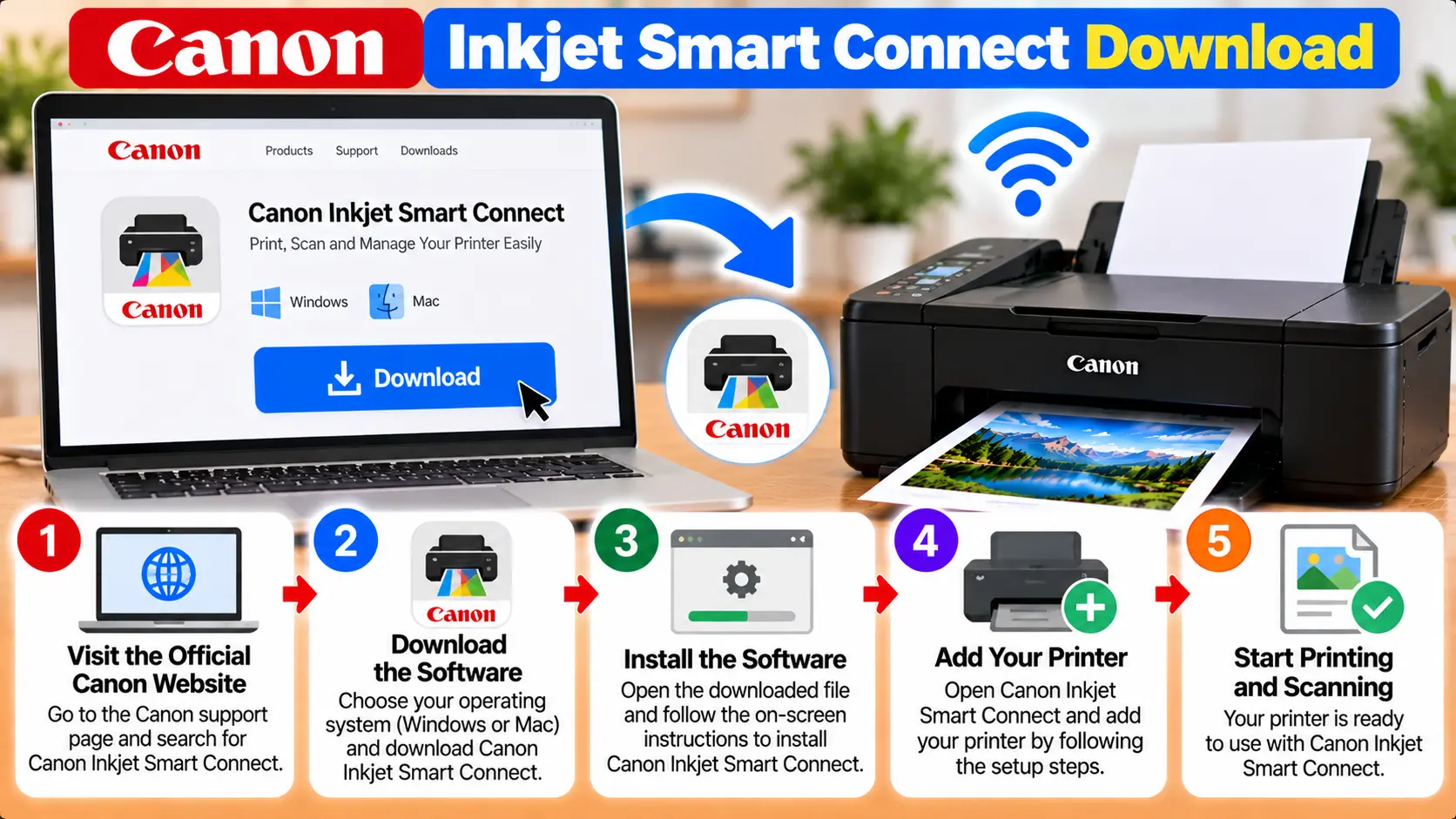
What Is Canon Inkjet Smart Connect?
Canon Inkjet Smart Connect is the former name used for Canon's compatible Windows and macOS desktop printer application. Current Canon documentation refers to Canon PRINT as formerly Canon Inkjet Smart Connect. On supported printers, the application can provide convenient access to printing, scanning, printer information, and management features.
What Is Canon Inkjet Smart Connect?
Canon Inkjet Smart Connect is application software associated with compatible Canon inkjet printers. It provides a centralized interface for accessing common printer functions from a computer.
Depending on the supported printer and software version, users may be able to print, scan, check printer information, view ink status, review error information, access network information, and open printer-management functions.
The available features are not necessarily identical for every Canon printer. Always check software compatibility for the exact printer model and computer operating system.
Is Canon Inkjet Smart Connect Now Canon PRINT?
Yes. Current Canon documentation describes Canon PRINT for Windows and macOS as the application formerly known as Canon Inkjet Smart Connect.
This means you may encounter both names while reading Canon manuals, older printer documentation, software screens, or troubleshooting guides.
Before Downloading Canon Inkjet Smart Connect
Check a few details before installing printer software.
- Identify the exact Canon printer model.
- Confirm that the printer supports the application.
- Check whether you are using Windows or macOS.
- Make sure your operating system is supported by the software available for your printer.
- Keep the printer powered on when the setup process asks you to detect or connect it.
- For network setup, make sure your computer and printer can connect to the intended network.
- Avoid unknown third-party software download websites.
Compatibility can differ between printer models. A software package listed for one Canon printer should not automatically be assumed to support every other model.
How to Download Canon Inkjet Smart Connect
Use Canon's current software or setup resources for your exact printer model rather than downloading an installer from an unknown third-party website.
- Find the exact model name or number printed on your Canon printer.
- Open Canon's official support or setup resource for that model.
- Select the appropriate computer operating system when required.
- Review the software available for your printer.
- Look for the current Canon desktop application supported by that model.
- If Canon identifies the application as Canon PRINT rather than Canon Inkjet Smart Connect, follow the current Canon naming and instructions.
- Download the installer to your computer.
How to Install Canon Inkjet Smart Connect
The exact installation screens can change with the software version and operating system, but the general process is straightforward.
Step 1: Download the Compatible Application
Download the software intended for your Canon printer and operating system.
Step 2: Open the Installer
Locate the downloaded installer and open it. If the operating system asks for permission to run the installer, review the publisher and application details before continuing.
Step 3: Follow the Setup Instructions
Continue through the installation screens and accept only the options you want to install.
Step 4: Prepare the Printer
Turn on the printer when prompted. For a network printer, confirm that it is connected or ready to connect to the intended network.
Step 5: Select or Detect the Printer
Allow the application to search for compatible printers and select the correct device when it appears.
Step 6: Complete Installation
Finish the setup and open the application. Verify that the correct printer is displayed before attempting printing, scanning, or management functions.
Using Canon Inkjet Smart Connect on Windows
Canon documentation shows Canon Inkjet Smart Connect being launched from the Windows Start menu on supported configurations.
Once the application recognizes the printer, the available options can include common print, scan, printer-information, and management functions. Available features depend on the printer.
If the printer does not appear, first confirm that Windows can communicate with the printer through the selected USB or network connection.
Using Canon Inkjet Smart Connect on macOS
Canon documentation also describes use of the application on compatible macOS systems. Canon manuals may show the application being opened from the Dock.
Compatibility should be checked for the exact printer and macOS version before installation. Avoid assuming that a Mac version is available for every older Canon model.
What Can Canon Inkjet Smart Connect Do?
Current Canon documentation for the desktop application describes several useful functions on supported models.
| Feature | Purpose |
|---|---|
| Printing | Provides access to convenient printing functions on supported printers. |
| Scanning | Allows supported multifunction printers to perform scanning tasks. |
| Printer status | Helps users review printer information and error status. |
| Ink information | Can display remaining ink information on supported models. |
| Network information | Provides network-related information for supported printers. |
| Remote UI access | Can provide convenient access to Remote UI on models that support this function. |
Some features are model-dependent, so an option shown for one printer may not be available on another.
Accessing Canon Remote UI
On compatible printers, Canon documentation describes using the desktop application to open Remote UI.
In documented versions of Canon Inkjet Smart Connect, users can open the application's Printer Management area, select Device Information, and then use the Open Remote UI option when supported.
Remote UI opens in a web browser and can provide printer information and management options. The exact controls depend on the printer model.
Is Canon Inkjet Smart Connect the Same as a Printer Driver?
Not necessarily. A printer driver and Canon's desktop management application serve different purposes, although installation packages and operating-system support can vary by model.
A driver helps the operating system communicate with the printer. Canon Inkjet Smart Connect or its current Canon PRINT desktop application provides a user interface for supported printer functions and management tasks.
If you specifically need printer-driver help, see: Canon Printer Driver Download and Installation .
Canon Inkjet Smart Connect Not Working?
If the application cannot install, open, or find your printer, check the following areas before repeatedly reinstalling it.
1. Confirm Printer Compatibility
Check whether the exact Canon printer model supports the application. Some Canon documentation specifically notes model-series limitations.
2. Check the Operating System
Make sure the software version you are installing is intended for your Windows or macOS version.
3. Check the Printer Connection
If the application cannot detect a network printer, verify that the printer is powered on and properly connected to the intended network.
For a USB-connected printer, check the USB cable and port.
4. Restart the Application
Close the application and open it again. If the computer or printer has a temporary communication problem, a normal restart may also help when no hardware error is displayed.
5. Check for Printer Errors
Resolve any support code, paper, ink, cover, or other blocking printer error before troubleshooting the application further.
6. Use Current Compatible Software
If an older guide refers to Canon Inkjet Smart Connect but Canon's current software page refers to Canon PRINT, follow the current software information provided for your supported printer.
Canon Inkjet Smart Connect Troubleshooting Table
| Problem | What to Check |
|---|---|
| Application not available | Check the exact Canon printer model, operating system, and current Canon software listing. |
| Canon PRINT appears instead | Current Canon documentation refers to Canon PRINT for Windows and macOS as formerly Canon Inkjet Smart Connect. |
| Printer not detected | Check printer power, WiFi or USB connection, and whether the printer is ready. |
| Scan option unavailable | Confirm that the printer supports scanning and that required compatible software is installed. |
| Application will not open | Restart the application, check OS compatibility, and install a current compatible version when appropriate. |
| Remote UI option unavailable | Confirm that the printer and software configuration support Remote UI access. |
Related Canon Software and Setup Guides
Frequently Asked Questions
What is Canon Inkjet Smart Connect?
It is Canon desktop application software for supported printers. Depending on the model, it can provide access to printing, scanning, printer information, and management functions.
Is Canon Inkjet Smart Connect now called Canon PRINT?
Current Canon documentation describes Canon PRINT for Windows and macOS as formerly Canon Inkjet Smart Connect. Users may therefore see either name in different Canon documentation or software versions.
Is Canon Inkjet Smart Connect available for every Canon printer?
No. Software compatibility and available features depend on the exact printer model and operating system. Check the current software information for your printer before installing it.
Can Canon Inkjet Smart Connect scan documents?
Canon documentation describes scanning as one of the application's functions on supported printer and scanner configurations. The printer itself must support scanning.
Can I check ink levels with Canon Inkjet Smart Connect?
On supported models, Canon documents the ability to view printer information such as remaining ink levels and error status.
Why can't Canon Inkjet Smart Connect find my printer?
Check that the printer is powered on, supported by the application, free of blocking errors, and properly connected through the intended network or USB connection.
Should I download Canon Inkjet Smart Connect from a third-party website?
It is safer to use Canon's current support or setup resources for your exact printer model rather than downloading printer software from an unknown third-party source.
Final Installation Checklist
- Exact Canon printer model identified.
- Printer compatibility checked.
- Windows or macOS version checked.
- Current Canon software naming reviewed.
- Software obtained through an appropriate Canon resource.
- Printer powered on during detection.
- WiFi or USB connection checked.
- Correct printer selected in the application.
- Print or scan function tested where supported.