Canon Printer Setup: Complete Setup Guide
Setting up a Canon printer generally involves preparing the printer, choosing a connection method, connecting it to your computer or network, and installing the appropriate printer software. This guide walks through the main setup methods and common problems you may encounter.
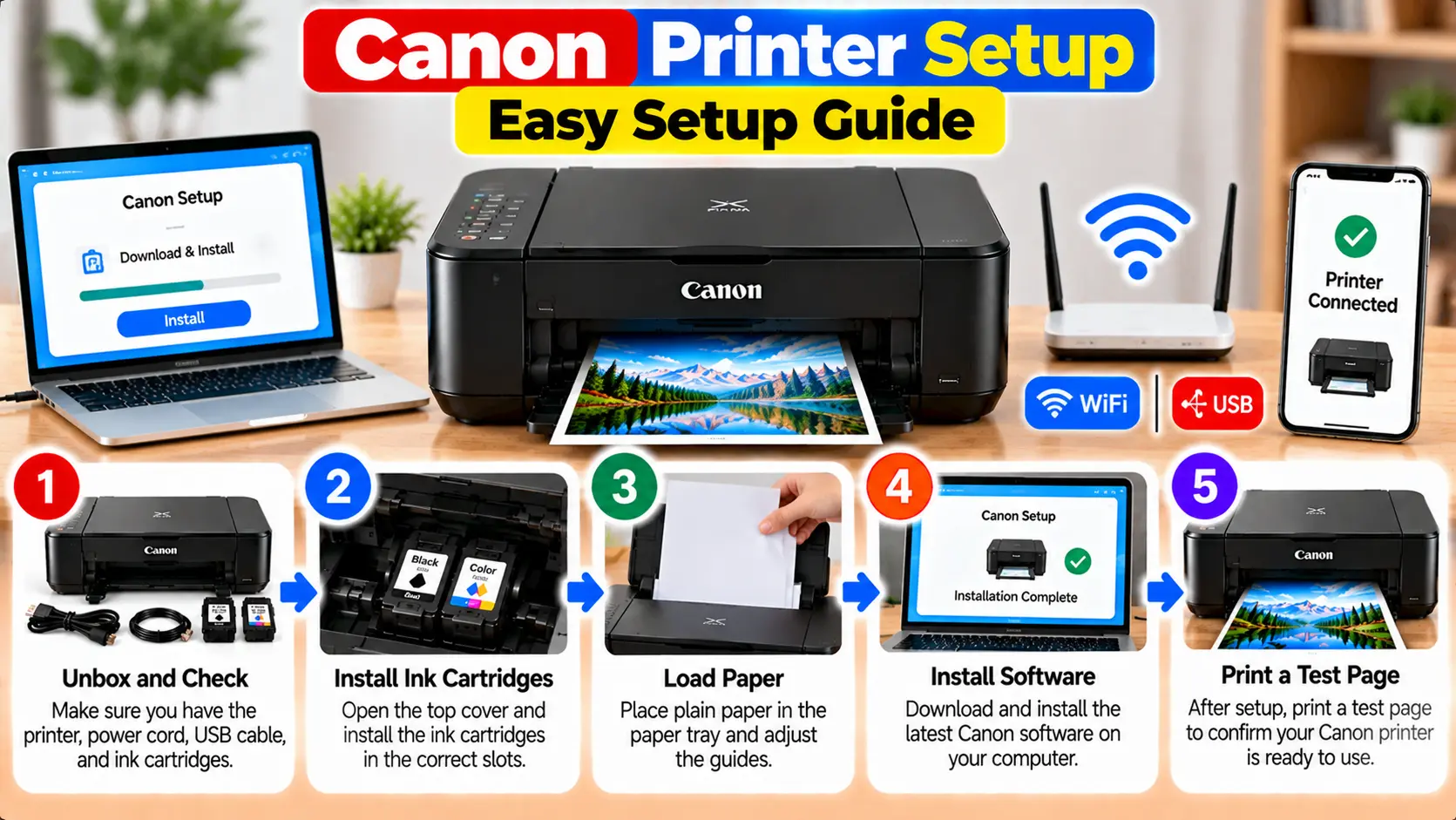
How Do I Set Up My Canon Printer?
Start by unpacking and powering on the printer, loading paper, and installing the required ink or toner. Next, choose Wi-Fi or USB as your connection method. Add the printer to your Windows or Mac computer and install the appropriate software or driver when required. Finally, print a test page to confirm that the setup is working.
Before You Start the Canon Printer Setup
A few basic checks can make the setup process easier. Place the printer on a stable surface near a power outlet and, for wireless setup, within a reliable range of your Wi-Fi router.
Before beginning, make sure you have:
- The Canon printer and its power cable.
- Compatible ink cartridges or toner installed correctly.
- Paper loaded into the appropriate tray.
- Your Wi-Fi network name and password if you are using a wireless connection.
- A Windows PC, Mac, laptop, or other device you want to use with the printer.
- A suitable USB cable if you plan to use a direct wired connection.
Basic Canon Printer Setup
The exact controls differ between Canon models, but the initial preparation is usually similar. Always check the instructions supplied with your specific model when a control, menu, or installation step differs.
1. Unpack the Printer
Remove the printer from its packaging and take off protective tape, shipping materials, and other packing pieces. Check inside accessible areas for any packaging that must be removed before use.
2. Connect the Power
Connect the printer to a suitable power outlet and turn it on. Allow the printer to complete its initial startup process.
3. Install Ink or Toner
Install the appropriate cartridges or toner for your model. Make sure each item is seated in the correct position.
4. Load Paper
Load compatible paper and adjust the paper guides so that they rest against the paper without bending it.
5. Choose a Connection Method
Decide whether you want to connect the printer wirelessly through your network or directly to a computer using USB.
How to Set Up a Canon Printer on Wi-Fi
Wireless setup allows compatible devices on the same network to communicate with the printer without keeping a USB cable connected.
- Turn on the printer and Wi-Fi router.
- Open the network or wireless settings available on your printer.
- Select the appropriate wireless setup option for your model.
- Choose your Wi-Fi network when it appears.
- Enter the Wi-Fi password carefully.
- Wait for the printer to confirm that the network connection has been established.
- Add or install the printer on your computer or other compatible device.
For a more detailed wireless walkthrough, see how to connect a Canon printer to Wi-Fi .
How to Set Up a Canon Printer Using USB
A USB connection can be useful when you want a direct connection between one computer and the printer or when wireless setup is not required.
- Turn on the Canon printer.
- Prepare the computer you want to use.
- Install the appropriate printer software when required.
- Connect the USB cable when the installation process asks you to do so, or according to the instructions for your model.
- Allow the computer to detect the printer.
- Complete the remaining installation steps.
- Print a test page or document.
How to Connect a Canon Printer to a Windows Computer
Once the printer is powered on and connected by Wi-Fi or USB, Windows may detect it automatically. If it does not appear, you can use the printer settings in Windows to add the device.
- Make sure the printer is turned on.
- Confirm that the printer and computer are connected through the intended connection method.
- Open the printer settings on Windows.
- Choose the option to add a printer or device.
- Select your Canon printer when it appears.
- Follow the prompts to complete setup.
You can also read our detailed guide on installing a Canon printer to a computer .
How to Set Up a Canon Printer on Mac
For a network printer, first make sure the Mac and printer are connected to the appropriate network. For USB setup, make sure the cable connection is secure.
- Turn on the Canon printer.
- Open the printer settings on your Mac.
- Choose the option to add a printer.
- Select the Canon printer if it is discovered.
- Follow the available prompts to complete the setup.
- Test the printer after installation.
For more details, visit our Canon printer setup on Mac guide .
Install Canon Printer Drivers and Software
Printer drivers allow the operating system and printer to communicate. Depending on your printer and operating system, some drivers may be installed automatically while other software may require a separate installation.
Before installing software, confirm your printer model and operating system. Use software intended for the correct device and system version.
Related guides:
Common Canon Printer Setup Problems
If setup does not complete successfully, identify the symptom before changing multiple settings. This makes it easier to focus on the most relevant troubleshooting steps.
| Problem | What to Check |
|---|---|
| Printer is not detected | Check power, USB or network connection, printer status, and whether the computer can discover the device. |
| Printer won't connect to Wi-Fi | Check the selected network, password, wireless signal, router, and printer network settings. |
| Printer appears offline | Check the connection, print queue, selected printer, and current printer status. |
| Driver problem | Confirm that the software matches the printer model and operating system, and consider updating or reinstalling it when appropriate. |
| Printer will not print after setup | Check the default printer, print queue, paper, ink or toner, and any error shown on the printer. |
If setup is complete but the printer shows an offline status, see our Canon Printer Offline troubleshooting guide .
Popular Canon Printer Setup Guides
Frequently Asked Questions
How do I set up a Canon printer for the first time?
Prepare the printer, install the required ink or toner, load paper, choose Wi-Fi or USB, connect it to your device, and complete any required software installation. The exact sequence can vary by printer model.
Can I set up a Canon printer without a USB cable?
A compatible wireless Canon printer can generally be set up over a supported network connection without keeping a USB cable connected. Available setup methods depend on the printer model.
Why is my Canon printer not showing on my computer?
Possible causes include a connection problem, incorrect network settings, the printer being offline, device discovery issues, or a driver problem. Start by checking power and the connection method.
Why does my Canon printer show offline after setup?
The printer may lose its network connection, have a paused or stuck print queue, be set incorrectly on the computer, or experience another communication problem.
Do I need a printer driver during setup?
It depends on the printer and operating system. Some systems can install compatible software automatically, while other setups may require additional printer software or drivers.
Canon Printer Setup Checklist
- Printer is powered on and ready.
- Ink or toner is installed correctly.
- Paper is loaded correctly.
- Wi-Fi or USB connection is established.
- The printer has been added to the computer.
- Required drivers or software are installed.
- A test page or document prints successfully.