Canon Printer Offline on Windows and Mac
A Canon printer may appear offline on Windows or macOS when the computer cannot communicate with the printer, a print queue is paused or stuck, the network connection has changed, or the printer has an error that prevents normal printing. Start with basic printer and connection checks, then follow the operating-system-specific steps below.
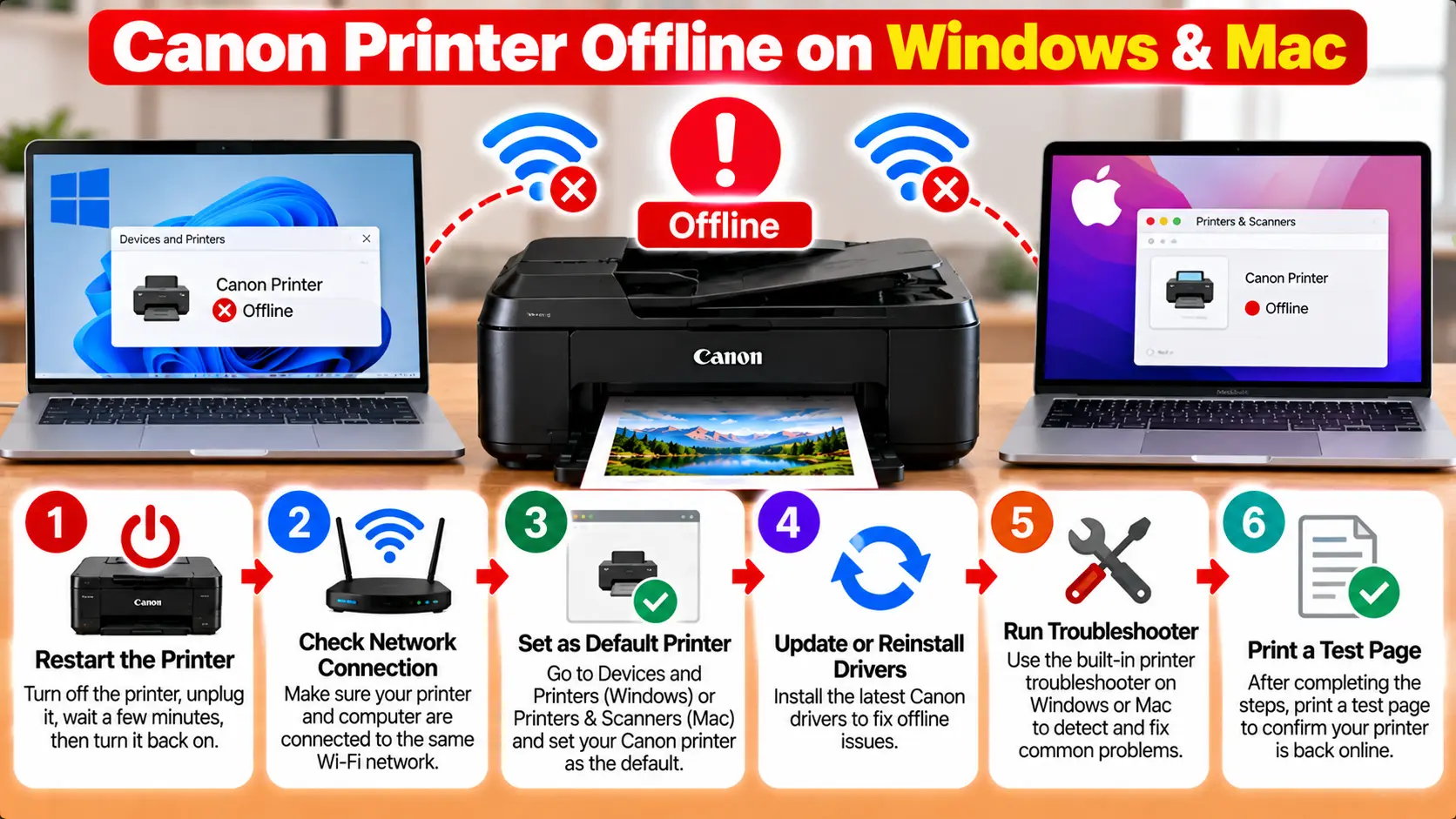
How Do I Get My Canon Printer Back Online?
Make sure the Canon printer is powered on and free of blocking errors, then verify its USB or WiFi connection. For a wireless printer, confirm that the computer and printer are using the intended network. Next, check the print queue for paused or stuck jobs. Windows users can also run the printer troubleshooter and restart the Print Spooler; Mac users can check printer and job status in Print Centre.
Why Is My Canon Printer Showing Offline?
An offline status generally means the computer is not currently able to use the printer normally. The cause may be a connection problem, printer error, queue problem, incorrect printer selection, or software issue.
Common areas to check include:
- Printer power and current status.
- WiFi or USB connection.
- Whether the printer and computer are on the intended network.
- Stuck or paused print jobs.
- Printer errors such as paper, ink, cover, or support-code messages.
- Printer installation and driver status.
- Whether the correct printer has been selected.
Basic Checks Before Changing Windows or Mac Settings
1. Check the Printer Power
Make sure the printer is turned on and has finished its startup process.
2. Check the Printer Display
Look for paper, ink, cover, jam, or support-code messages. Resolve any blocking printer error before continuing.
3. Check the Connection
For USB, make sure the data cable is securely connected to both the printer and computer.
For WiFi, verify that the printer is still connected to the intended wireless network.
4. Restart the Printer
If no specific hardware error is displayed, a normal restart can clear temporary communication problems.
5. Check Whether the Network Changed
If you recently changed the router, network name, password, or access point, the printer may still have the old network configuration.
How to Fix Canon Printer Offline on Windows 11
After completing the basic printer checks, use the following Windows troubleshooting steps.
Step 1: Run the Windows Printer Troubleshooter
Microsoft recommends starting with the automated printer troubleshooter in the Get Help app on Windows 11. It can run diagnostics and attempt to correct common printer problems.
Step 2: Check the Printer Connection
For a wireless printer, confirm that the printer and Windows computer are connected to the same intended wireless network.
If you use multiple routers, access points, extenders, or different network names, verify that the computer has not joined a different network.
Step 3: Check the Default Printer
Open:
Start > Settings > Bluetooth & devices > Printers & scanners
Select the Canon printer and check whether it is the printer you intend to use. Windows also provides an option to set a printer as the default when automatic default-printer management is not controlling that selection.
Step 4: Check the Windows Print Queue
Go to:
Settings → Bluetooth & devices → Printers & scanners
Select the Canon printer and open its print queue. Check for jobs that are stuck or no longer needed. Clear failed jobs when appropriate.
Step 5: Restart the Print Spooler
The Windows Print Spooler manages print jobs. If the queue is not responding correctly, restart the service.
- Use Windows Search and type Services.
- Open the Services application.
- Find Print Spooler.
- Right-click it and select Restart.
Step 6: Remove and Reinstall the Printer
If the Canon printer remains unavailable, Windows allows you to remove the printer and add it again.
Open:
Settings → Bluetooth & devices → Printers & scanners
Select the printer, remove it, then return to Printers & scanners and use Add device after confirming that the printer is powered on and connected.
What About Canon Printer Offline on Windows 10?
Many connection, queue, spooler, and printer reinstallation checks also apply to Windows 10. However, Microsoft ended Windows 10 support on October 14, 2025, so this guide focuses primarily on Windows 11 for current Windows instructions.
If you still use Windows 10, see our dedicated Canon offline guides for the version-specific troubleshooting information available on this site.
How to Fix Canon Printer Offline on Mac
On macOS, begin with the same printer-side and connection checks before changing the printer configuration.
Step 1: Check the Canon Printer
Confirm that the printer is on, ready, and not displaying a blocking error.
Step 2: Check the Network or USB Connection
For a network printer, verify that the Mac and Canon printer can communicate over the intended network.
For USB, check the cable, port, and any adapter or hub being used.
Step 3: Open Print Centre
Apple provides Print Centre for managing printers and print jobs. It can show the printers added to the Mac and their current print jobs.
Step 4: Check for Paused Printing
In Print Centre, select the Canon printer and review its jobs. If a job or the printer queue has been paused, use the available Resume control when appropriate.
Step 5: Remove Failed Jobs
A failed or unnecessary job can be removed from the print queue. After clearing the queue, try a simple test print.
Step 6: Check the Printer in macOS Settings
Open the Mac's printer settings and confirm that the intended Canon printer is still installed. If the device was removed, the network changed, or the printer configuration is no longer valid, you may need to add the printer again.
For a dedicated Canon Mac troubleshooting guide, see: Why Is My Canon Printer Offline on Mac?
Canon Printer Connected to WiFi but Showing Offline
A printer can have wireless enabled and still be unavailable to the computer. Check the actual network connection rather than relying only on a WiFi symbol.
- Confirm the printer is connected to the intended WiFi network.
- Confirm the computer is using the intended network.
- Check whether the router or WiFi password was recently changed.
- Check whether a guest network or separate access point is isolating the devices.
- Restart network equipment when appropriate if there is a broader connectivity problem.
- Reconnect the printer to WiFi if its saved network configuration is no longer valid.
For wireless setup instructions, see: How to Connect Canon Printer to WiFi .
Canon USB Printer Showing Offline
If the Canon printer uses a direct USB connection, focus on the cable and computer connection rather than WiFi settings.
- Confirm the printer is turned on.
- Reconnect the USB data cable securely.
- Try another suitable USB port when appropriate.
- Check whether the computer recognizes the printer.
- If using an adapter or hub, check whether it is functioning correctly.
- Make sure the correct installed Canon printer is selected when printing.
Check the Canon Printer Driver and Installation
If the physical or network connection is working but the printer still cannot be used, check the printer installation and compatible software.
On Windows, Microsoft recommends checking for current printer drivers when connection or printing problems continue. Removing and reinstalling the printer can also rebuild its Windows configuration.
Do not download random printer-driver packages from unknown websites. Identify the exact Canon model and operating system before installing software.
Canon Printer Offline Troubleshooting Table
| Problem | What to Check |
|---|---|
| Canon printer offline on Windows | Check connection, default printer, print queue, Print Spooler, and printer installation. |
| Canon printer offline on Mac | Check printer status, connection, Print Centre, paused jobs, and printer configuration. |
| WiFi printer suddenly offline | Check whether the network name, password, router, or access point recently changed. |
| USB printer offline | Check the USB data cable, port, printer power, and device recognition. |
| Print jobs stuck | Review the print queue and remove failed or unnecessary jobs. |
| Printer has a support code | Troubleshoot the specific printer error before changing computer settings. |
What Should You Avoid?
- Do not factory-reset the printer as the first offline troubleshooting step.
- Do not repeatedly reinstall drivers before checking the actual connection.
- Do not use another Canon model's reset procedure.
- Do not ignore a support code displayed on the printer.
- Do not download printer software from unverified websites.
- Do not assume every offline problem is caused by WiFi; USB, queue, software, and printer-side problems can also be involved.
Related Canon Printer Offline Guides
Frequently Asked Questions
Why is my Canon printer offline even though it is turned on?
The computer may be unable to communicate with the printer because of a network, USB, queue, installation, or printer-side problem. Check the connection and printer status first.
How do I fix a Canon printer offline on Windows 11?
Check the printer connection and queue, run the Windows printer troubleshooter in Get Help, restart the Print Spooler if necessary, and remove and reinstall the printer if the problem continues.
How do I fix a Canon printer offline on Mac?
Check printer power and connectivity, then use Print Centre to review the printer and print jobs. Resume paused printing or remove failed jobs when appropriate.
Why does my Canon printer keep going offline on WiFi?
Check whether the printer is still connected to the intended network and whether the router, WiFi password, network name, or access-point configuration has changed.
Can a stuck print job make the printer appear unavailable?
A stuck or paused queue can prevent new jobs from printing normally. Review the print queue and remove failed jobs when appropriate.
Should I reinstall the Canon driver when the printer is offline?
Driver or printer reinstallation can help in some cases, but first check printer power, errors, WiFi or USB connectivity, and the print queue so you do not reinstall software unnecessarily.
Final Offline Printer Checklist
- Canon printer is powered on.
- No blocking printer error is displayed.
- WiFi or USB connection is working.
- Computer and wireless printer are using the intended network.
- Correct Canon printer is selected.
- Print queue has been checked.
- Windows Print Spooler checked when applicable.
- Mac Print Centre checked when applicable.
- Printer installation and driver checked if needed.
- Test print completed after troubleshooting.