How to Add a Printer to iPhone Step by Step
You usually do not install a network printer on an iPhone in the same way you install one on a Windows or Mac computer. With an AirPrint-compatible printer, the iPhone can discover the printer when you open the Print option in a supported app. The printer and iPhone normally need to be connected to the same WiFi network.
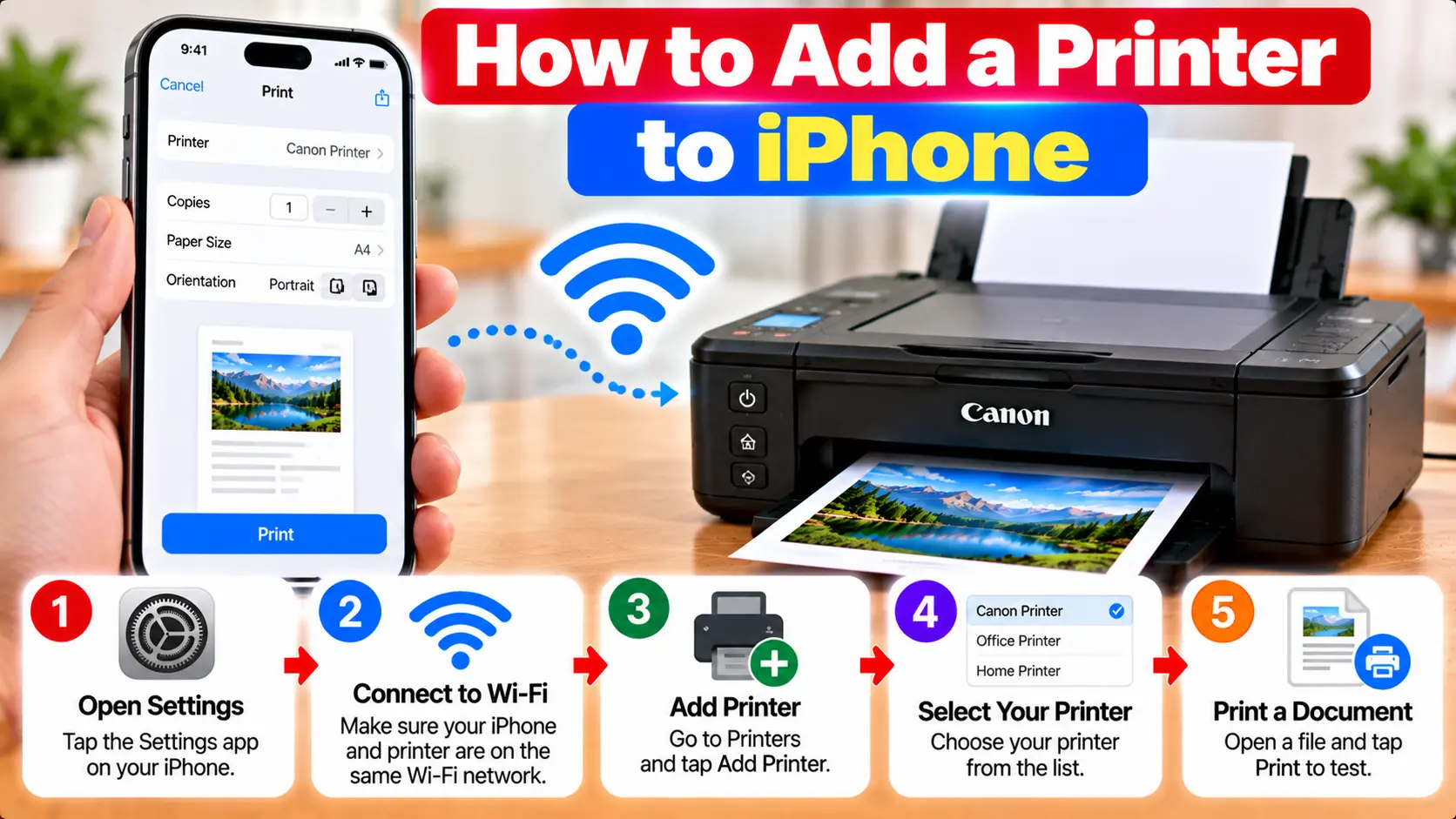
How Do I Add a Printer to My iPhone?
For an AirPrint-compatible printer, connect the printer and iPhone to the same WiFi network. Open the photo, document, email, or webpage you want to print, open the Share or Actions menu, choose Print, tap the printer selection option, and select the available AirPrint printer. Choose your print settings and tap Print.
What You Need Before Adding a Printer to iPhone
Before trying to print, make sure the printer and network are ready.
- Turn on the printer and allow it to finish starting.
- Confirm that the printer supports AirPrint if you plan to use Apple's built-in wireless printing method.
- Connect the printer to your WiFi network.
- Connect the iPhone to the same WiFi network.
- Make sure the printer is not showing a paper, ink, jam, or other error that prevents printing.
- Open an iPhone app that supports printing.
What Is AirPrint on iPhone?
AirPrint is Apple's printing technology for compatible printers. It allows an iPhone to discover and print to a supported printer without installing a traditional printer driver.
Apps such as Photos, Mail, and Safari can support AirPrint, and many other iPhone apps also provide printing features.
For normal AirPrint printing, the iPhone and printer should be available on the same WiFi network.
How to Add an AirPrint Printer to iPhone
Once the printer is connected to the network, use these general steps:
- Open the app containing the item you want to print.
- Open the app's Share, Actions, or similar menu.
- Scroll through the available actions and tap Print.
- Tap the printer selection field, which may initially indicate that no printer is selected.
- Wait while the iPhone searches for compatible printers.
- Select your AirPrint-enabled printer.
- Choose available options such as copies or page range when applicable.
- Tap Print.
The exact appearance of the Share or Actions menu can vary between apps and iOS versions.
Why Can't I Find an "Add Printer" Setting on iPhone?
This often causes confusion because printer setup on an iPhone is different from adding a printer to a desktop computer.
With AirPrint, you normally select the available printer from the Print screen inside the app from which you are printing. You do not generally need to create a traditional permanent printer installation with a desktop-style printer driver.
How to Print Photos From iPhone
- Open the Photos app.
- Open the photo you want to print.
- Tap the Share button.
- Scroll through the available actions.
- Tap Print.
- Select your available printer.
- Choose the available print options.
- Tap Print.
Available paper, media, size, and finishing options depend on the printer and the print workflow.
How to Print a Document From iPhone
Open the document in an app that supports printing. Depending on the app, open its Share, More, or Actions menu and look for Print.
Select the printer, review the available print options, and start the print job.
If Print does not appear, the app may not provide a printing option for that content.
How to Print an Email From iPhone
If your email app supports printing, open the message and locate its Reply, Actions, More, or related menu.
Choose Print, select the available AirPrint printer, adjust the print options if necessary, and start printing.
Menu placement can vary depending on the email app being used.
How to Print a Webpage From iPhone
To print from a supported browser such as Safari:
- Open the webpage.
- Open the Share menu.
- Find and tap Print.
- Select your printer.
- Review the available print settings.
- Tap Print.
How to Check or Cancel an iPhone Print Job
While a print job is active, iPhone can make Print Center available through the App Switcher.
Open the App Switcher and select Print Center to review the active job. If necessary, select the job and use the available option to cancel printing.
iPhone Says No AirPrint Printers Found
If the printer does not appear on the iPhone, check the network and printer before repeatedly trying to print.
1. Check AirPrint Compatibility
Confirm that the exact printer model supports AirPrint.
2. Check the WiFi Network
Make sure the iPhone and printer are connected to the same intended WiFi network.
3. Check Printer Status
Make sure the printer is powered on and ready and is not stopped by a paper jam, open cover, or other error.
4. Check the Printer's Network Connection
A printer can be turned on while no longer being connected to WiFi. Check its network status if it does not appear on the iPhone.
5. Restart When Appropriate
If there is no specific hardware error, restarting the printer, iPhone, or network equipment may help resolve a temporary discovery problem.
6. Check Network Restrictions
Guest, isolated, managed, or otherwise restricted networks may prevent devices from discovering each other even when both appear to have internet access.
Does the Printer Need to Be Connected to WiFi?
For standard AirPrint discovery from an iPhone, the printer needs an appropriate network connection and the iPhone and printer normally need to be on the same WiFi network.
The printer itself may connect to the local network using a supported network connection, but simply connecting a printer to a computer by USB does not automatically make it available as an AirPrint printer to the iPhone.
How to Print From iPhone Without AirPrint
If your printer does not support AirPrint, check which mobile-printing methods are officially supported by the exact printer model.
Depending on the manufacturer and printer, an alternative may include a manufacturer-supported iPhone app or another supported wireless printing method.
Do not assume that every non-AirPrint printer can be made compatible simply by installing a random third-party app.
How to Connect a Canon Printer to iPhone
If you specifically use a Canon printer, first make sure the printer has a working wireless connection. Then check whether the exact model supports the printing method you want to use.
For more detailed Canon-specific guidance, see: How to Connect Canon Printer to Phone .
If the Canon printer is not connected to the wireless network, see: How to Connect Canon Printer to WiFi .
iPhone Printer Troubleshooting Table
| Problem | What to Check |
|---|---|
| Printer does not appear | Check AirPrint compatibility, printer power, and network connection. |
| No AirPrint printers found | Confirm the iPhone and printer are on the same intended WiFi network and can discover each other. |
| Print option is missing | Check the app's Share or Actions menu. Not every app supports printing. |
| Printer appears but will not print | Check the printer for paper, ink, jam, offline, or other error conditions. |
| Printer recently changed WiFi | Reconnect the printer to the intended network before trying to discover it from the iPhone. |
| Printer does not support AirPrint | Check the exact model for an officially supported mobile printing method. |
Common iPhone Printing Mistakes
- Looking for a desktop-style Add Printer screen before trying the app's Print option.
- Assuming every wireless printer supports AirPrint.
- Connecting the iPhone and printer to different WiFi networks.
- Ignoring an error shown on the printer.
- Assuming internet access alone means the two devices can discover each other.
- Installing random printer apps without checking printer compatibility.
- Repeatedly resetting the printer when the actual problem is network discovery.
Related Printer Guides
Frequently Asked Questions
How do I add a wireless printer to my iPhone?
If the printer supports AirPrint, connect the iPhone and printer to the same WiFi network. Open a printable item, choose Print from the appropriate Share or Actions menu, and select the available printer.
Why can't my iPhone find my printer?
Check that the printer supports the printing method you are using, is powered on and ready, and is connected to the same intended WiFi network as the iPhone. Network isolation can also prevent discovery.
Do I need to install a printer driver on iPhone?
AirPrint-enabled printers do not require a traditional printer driver to be installed on the iPhone. Non-AirPrint printers may require a different manufacturer-supported mobile printing method.
Can I print photos directly from my iPhone?
Yes. With a compatible printer, open a photo, use the Share menu, choose Print, select the printer, review the available options, and start printing.
Does my iPhone and printer need to be on the same WiFi?
For normal AirPrint printing, the iPhone and printer should be available on the same WiFi network so the iPhone can discover the printer.
Can I print from iPhone without AirPrint?
Possibly, depending on the printer. Check the exact model for manufacturer-supported mobile printing options if AirPrint is not available.
Final iPhone Printing Checklist
- Printer is turned on and ready.
- AirPrint compatibility has been confirmed when using AirPrint.
- Printer is connected to the intended network.
- iPhone is connected to the same WiFi network.
- No paper, ink, jam, or printer error is blocking printing.
- The app being used provides a Print option.
- The correct printer appears in the printer selection screen.
- Copies and other available print settings have been checked.
- Print Center has been checked if an active job needs to be reviewed or canceled.