Canon Printer Offline on Windows 7: How to Get It Back Online
If your Canon printer shows offline on Windows 7, the computer may be unable to communicate with the printer even though the printer is turned on. Connection problems, a paused print queue, offline mode, an incorrect default printer, port settings, or an older driver can contribute to the problem. Work through the checks below from the simplest to the more advanced steps.
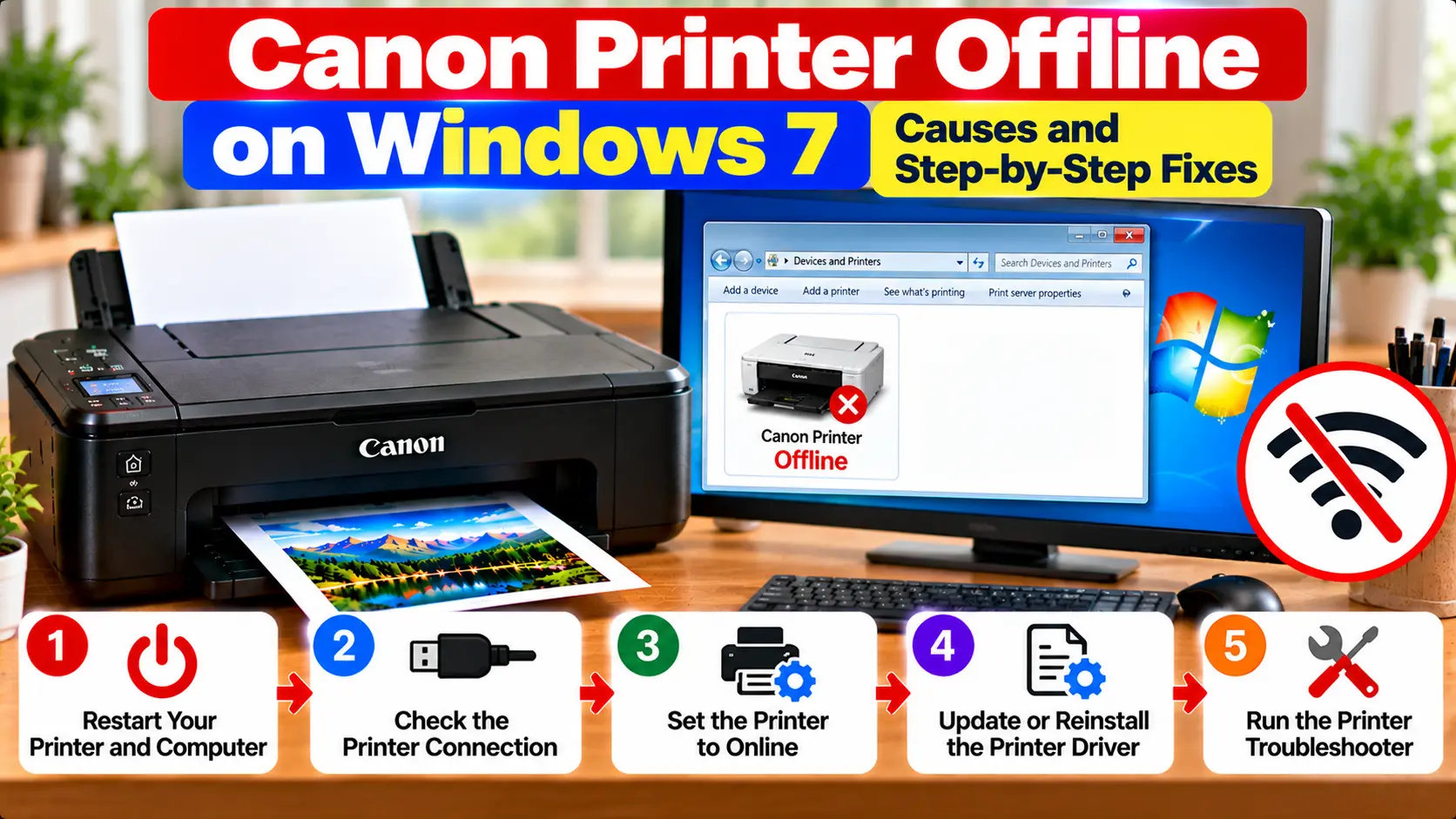
How Do I Fix a Canon Printer Offline on Windows 7?
Make sure the printer is powered on and connected, then restart the printer and computer. Open the Windows 7 printer queue and check that printing is not paused and that an offline mode is not enabled. Confirm the correct Canon printer is selected as the default printer. If the problem continues, check the USB or network connection, printer port, print queue, and compatible driver.
Why Does My Canon Printer Say Offline on Windows 7?
An offline status usually means Windows cannot currently communicate with the selected printer. The printer itself may still be powered on and otherwise functional.
Common causes include:
- The printer is turned off or not ready.
- A USB cable is disconnected or unstable.
- The printer and computer are no longer communicating over the network.
- Windows is using the wrong printer.
- Printing is paused.
- An offline setting is enabled in the queue.
- A print job is stuck.
- The configured printer port no longer matches the active connection.
- The installed driver is missing, damaged, or incompatible with the current setup.
1. Start With Basic Printer Checks
Before changing Windows settings, check the physical printer.
- Make sure the printer is powered on.
- Check the printer for an error or warning light.
- Make sure paper is loaded correctly.
- Check for an obvious paper jam.
- Make sure user-accessible covers are closed normally.
- If using USB, check that the cable is connected.
If the printer itself displays an error code, troubleshoot that printer-side error before focusing only on the Windows offline status.
2. Restart the Printer and Windows 7 Computer
A normal restart can restore communication when the connection or print system has stopped responding.
- Turn the printer off normally.
- Restart the Windows 7 computer.
- Turn the printer back on.
- Wait for the printer to become ready.
- Try printing a small document again.
If the printer still appears offline, continue to the Windows printer settings.
3. Check “Use Printer Offline” and Pause Printing
Windows 7 may show a printer offline if the print queue is configured to work offline or printing has been paused.
- Click the Windows Start button.
- Open Devices and Printers.
- Find your Canon printer.
- Open its print queue.
- Open the Printer menu.
- If Pause Printing is enabled, disable it.
- If Use Printer Offline is enabled, disable it.
Menu wording can vary slightly depending on the installed driver and Windows configuration.
4. Set the Correct Canon Printer as Default
Multiple copies of the same printer can sometimes appear in Windows, especially after reinstalling a printer or changing its connection.
Open Devices and Printers and identify the Canon printer that matches the connection you are actually using.
Right-click the correct printer and choose Set as default printer if appropriate.
Then try a test print again.
5. Clear Stuck Print Jobs
A failed document can remain in the print queue and prevent later jobs from printing normally.
Open the Canon printer queue and look for documents that remain in an error, paused, or pending state.
Cancel the failed jobs you no longer need. After the queue clears, send one small test document instead of several jobs at once.
6. Check the USB or Network Connection
For a USB Printer
Make sure the USB cable is securely connected to the printer and computer.
If possible, reconnect the cable directly to the computer rather than through an unpowered hub. Avoid repeatedly changing ports while print jobs are active.
For a Wireless or Network Printer
Make sure the printer is still connected to the intended network and that the computer can access the same local network.
If the Wi-Fi network name, router, or password was recently changed, the printer may need to be reconnected.
For wireless troubleshooting, see: Canon Printer Won't Connect to Wi-Fi .
7. Check the Printer Port
Windows sends print data through the port associated with the installed printer. If the configured port no longer matches the actual connection, the printer may appear unavailable.
In Devices and Printers, right-click the appropriate Canon printer and open its printer properties. Review the Ports tab.
Do not randomly select ports. The correct port depends on whether the printer is connected through USB or the network and how it was originally installed.
8. Check the Canon Printer Driver
If Windows recognizes the printer incorrectly or communication problems continue, the installed driver may need attention.
Because Windows 7 is no longer a supported Microsoft operating system, driver availability depends on the exact printer model and the software previously released for it.
Before reinstalling anything, identify:
- The exact Canon printer model.
- Whether Windows 7 is 32-bit or 64-bit.
- Whether the printer uses USB or a network connection.
Avoid downloading printer drivers from unknown software-download websites.
See our: Canon Printer Driver Guide .
9. Restart the Windows 7 Print Spooler
The Print Spooler manages print jobs in Windows. If it stops responding, the queue and printer status may behave incorrectly.
- Click Start.
- Open the Windows administrative services interface.
- Locate Print Spooler.
- Restart the service.
- Reopen the printer queue.
- Try one test print.
If the spooler repeatedly stops, the underlying driver, print job, or Windows configuration may require additional diagnosis.
10. Consider Re-adding the Printer
If the connection works but Windows continues using an outdated or duplicate printer entry, removing and adding the printer again may help.
Before doing this, make sure you know how the printer connects and whether compatible software is available for your exact model and Windows 7 edition.
Do not remove a working printer configuration unless you are prepared to reinstall it.
Canon Printer Offline Windows 7 Troubleshooting Table
| Problem | What to Check |
|---|---|
| Printer suddenly shows offline | Check power, printer errors, and the USB or network connection. |
| Queue says offline | Check whether offline mode or pause printing is enabled. |
| Multiple Canon printers appear | Identify and select the printer entry matching the active connection. |
| Documents remain pending | Cancel stuck jobs and test with one small document. |
| USB printer offline | Check the cable, USB connection, and appropriate printer port. |
| Wireless printer offline | Confirm the printer is connected to the intended local network. |
| Offline after router change | Recheck the printer's network connection and Windows printer configuration. |
| Problem continues | Check the port, Print Spooler, and compatible printer driver. |
What to Avoid While Troubleshooting
- Do not change multiple printer ports randomly.
- Do not repeatedly remove and reinstall the printer without identifying the connection problem.
- Do not download drivers from unknown websites.
- Do not assume every offline problem is caused by Wi-Fi.
- Do not factory-reset the printer just because Windows reports it as offline.
- Do not ignore an error displayed directly on the printer.
Using Windows 10 or Windows 11 Instead?
This page specifically covers the legacy Windows 7 environment. Newer versions of Windows use different interfaces and may handle printers differently.
If your computer runs Windows 10 or Windows 11, use our newer guide: Canon Printer Offline on Windows 10/11 .
Related Canon Printer Guides
Frequently Asked Questions
Why is my Canon printer offline on Windows 7?
Windows may show the printer offline when it cannot communicate with it. Possible causes include connection problems, offline mode, a paused queue, an incorrect printer entry, port configuration, or driver problems.
How do I change my Canon printer from offline to online in Windows 7?
Check that the printer is connected and ready, then open its queue through Devices and Printers. Make sure printing is not paused and that an offline mode is not enabled. Also verify that you are using the correct printer entry.
Why is my Canon printer connected but still offline?
A physical or network connection does not always mean Windows is communicating through the correct printer entry or port. Check the queue, default printer, active connection, and port.
Can a stuck print job make the printer appear offline?
A failed or stuck print job can interfere with normal printing. Clear unnecessary failed jobs from the queue and try one small test document.
Does Windows 7 still support Canon printers?
Windows 7 itself reached end of support in 2020. Whether a particular Canon printer can be used depends on the printer model, available driver, connection method, and existing system configuration.
Should I reinstall the Canon driver?
Driver reinstallation can be considered after simpler connection, queue, and printer-status checks. First confirm that compatible software exists for the exact printer model and Windows 7 system type.
Should I reset my Canon printer to fix Windows 7 offline status?
A factory reset is generally not the first step. An offline status is often related to the Windows queue, connection, printer entry, port, or driver rather than settings that require a full printer reset.
Final Windows 7 Offline Checklist
- Printer is powered on and ready.
- No printer-side error is displayed.
- USB or network connection is active.
- Correct Canon printer is selected.
- Printing is not paused.
- Offline mode is not enabled.
- Stuck print jobs have been cleared.
- Printer port matches the connection.
- Print Spooler is running normally.
- Compatible printer driver is installed where available.