Canon PIXMA TS6420a Wireless All-in-One Printer Guide
The Canon PIXMA TS6420a is a compact all-in-one inkjet printer designed for everyday printing, copying, and scanning. It supports wireless networking and USB connectivity, mobile printing, front and rear paper feeding, and automatic two-sided printing. This guide covers setup, connectivity, printing, scanning, and common troubleshooting steps.
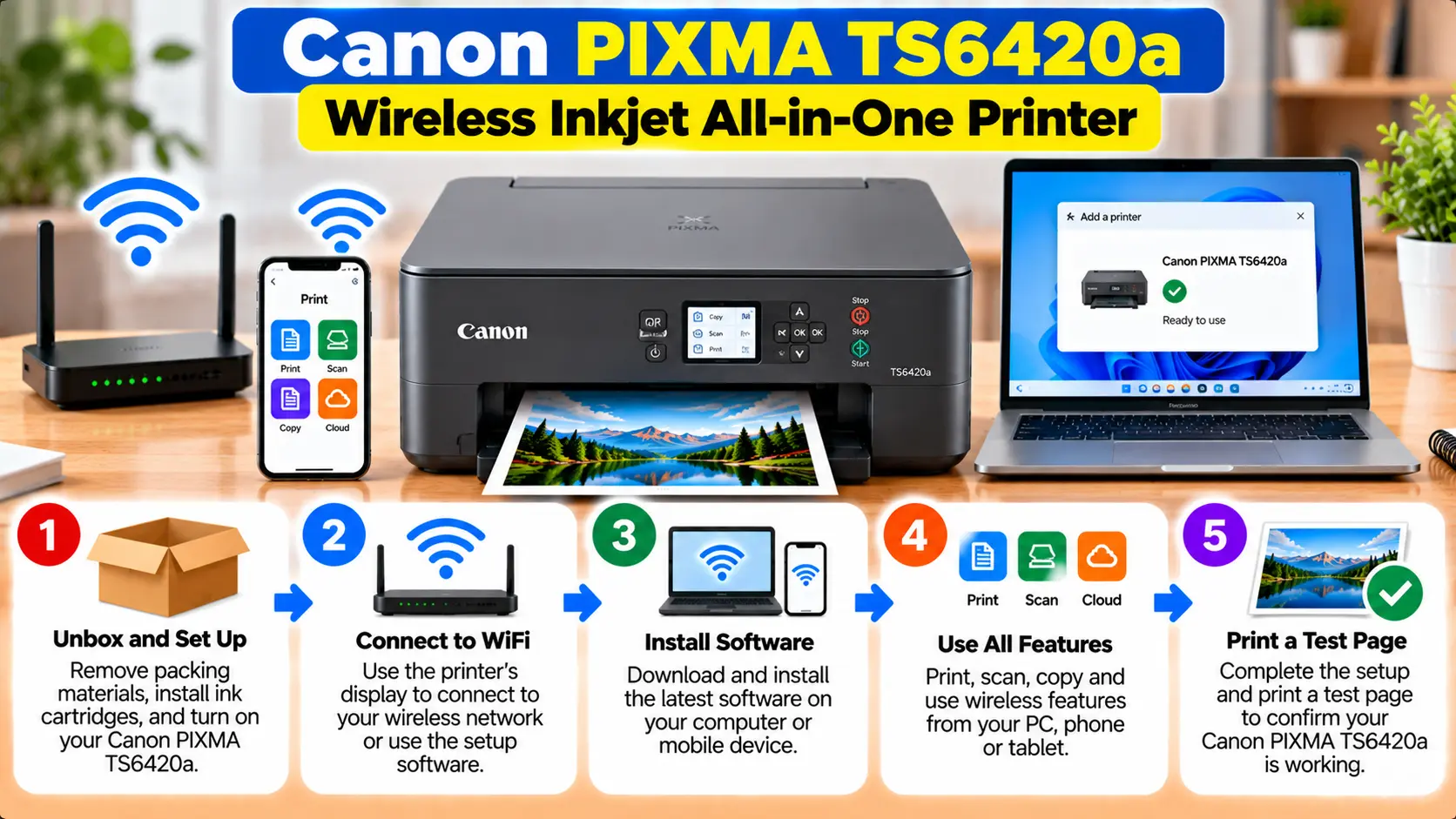
How Do I Set Up a Canon PIXMA TS6420a?
Prepare the printer, install the black and color FINE cartridges, load paper, and turn it on. Then choose WiFi or USB as the connection method. Complete the printer setup on your computer or mobile device, add the TS6420a as an available printer, and run a test print and scan.
Canon PIXMA TS6420a Features at a Glance
The TS6420a combines printing, copying, and flatbed scanning in one device. Its connectivity options make it suitable for computers and compatible mobile devices.
| Feature | TS6420a |
|---|---|
| Functions | Print, copy, and scan |
| WiFi | Built-in wireless networking |
| USB | Hi-Speed USB |
| Wireless Direct | Supported |
| Scanner | Flatbed CIS scanner |
| Display | 1.44-inch OLED display |
| Paper Feeding | Front cassette and rear tray |
| Two-Sided Printing | Automatic duplex printing |
| Mobile Printing | Canon PRINT, AirPrint, and Mopria support |
Prepare the Canon PIXMA TS6420a for Setup
Complete the physical printer preparation before configuring WiFi or installing it on a computer.
- Remove the printer and accessories from the packaging.
- Remove protective tape and shipping material.
- Place the printer on a stable, level surface.
- Connect the power cord and turn on the printer.
- Follow the printer prompts for initial preparation.
- Install the compatible black and color FINE cartridges.
- Load suitable paper.
- Confirm that the printer reaches its normal ready state.
How to Connect Canon PIXMA TS6420a to WiFi
The TS6420a supports built-in wireless networking. The exact setup screens can vary depending on whether you start from a computer or mobile device, but the goal is to connect the printer to the intended wireless network.
Wireless Connect Setup
- Turn on the TS6420a.
- Make sure the wireless router is operating.
- Place the printer into its Wireless Connect setup state when instructed by the setup process.
- Start the Canon setup process on the computer or compatible mobile device.
- Select the TS6420a when prompted.
- Choose the intended wireless network.
- Enter the network password when required.
- Allow the setup process to complete the connection.
After setup, verify that the printer and the device you want to print from can communicate over the intended network.
How to Connect Canon TS6420a With USB
If you prefer a direct computer connection, the TS6420a also supports Hi-Speed USB.
- Turn on the printer and computer.
- Start the appropriate printer setup process on the computer.
- Choose USB when the setup asks for the connection method.
- Connect the USB cable when instructed.
- Connect the printer directly to a working USB port on the computer.
- Wait while the computer detects the printer.
- Complete the remaining installation steps.
If the printer is not detected, check the cable and USB port before reinstalling the printer software.
Set Up the Canon TS6420a on a Computer
Canon provides a setup process for adding the TS6420-series printer to a computer. After preparing the printer, run the appropriate setup for your computer and follow the installation instructions.
During setup:
- Select the exact TS6420-series printer when prompted.
- Choose WiFi or USB according to your preferred connection.
- Allow printer detection to finish.
- Complete the software installation.
- Check that the TS6420a appears in the computer's printer list.
Canon's setup documentation directs computer users to download and run the setup software and then follow the on-screen instructions.
Connect Canon TS6420a to a Phone or Tablet
The TS6420a supports mobile printing and scanning. Depending on your device, compatible options can include the Canon PRINT app, Apple AirPrint, and Mopria services.
Router-Based Mobile Setup
For normal home-network printing, connect the TS6420a and your mobile device to the intended wireless network. Then complete printer discovery using the compatible mobile printing method.
Wireless Direct
Wireless Direct allows a compatible device to connect directly to the printer without using the normal wireless router connection.
Canon TS6420a Paper and Ink Setup
The TS6420a uses a two-cartridge FINE ink system with a black cartridge and a color cartridge.
Canon lists PG-260 black and CL-261 color ink cartridges for this model, including compatible higher-capacity variants.
Front and Rear Paper Feeding
The printer includes both a front paper cassette and a rear paper tray. This makes it possible to keep plain paper available while using the rear tray for other supported media when appropriate.
Before printing:
- Use suitable paper for the selected job.
- Align paper before loading it.
- Adjust the paper guides correctly.
- Do not overload the selected paper source.
- Make sure the print settings match the loaded paper size and media type.
How to Scan With Canon PIXMA TS6420a
The TS6420a includes a flatbed scanner for documents and photos.
- Make sure the printer is turned on and connected to the computer or compatible mobile device.
- Lift the document cover.
- Place the document or photo on the platen glass.
- Close the cover carefully.
- Open compatible scanning software or the supported mobile scanning option.
- Select the TS6420a when required.
- Choose the desired scan settings.
- Start the scan and check the resulting file.
If the printer can print but cannot scan, check scanner detection and scanning software separately before changing the entire printer connection.
Test Printing After TS6420a Setup
After installation, send a simple document to the printer before attempting a large or complex print job.
Check that:
- The TS6420a appears as an available printer.
- The correct printer is selected.
- The print queue is clear.
- Paper is loaded in the intended paper source.
- No cartridge or paper error is displayed.
- The test page feeds and prints normally.
Canon PIXMA TS6420a Troubleshooting
TS6420a Won't Connect to WiFi
Check that the router is working, the correct wireless network is being selected, and the password is entered correctly. Keep the printer reasonably close to the router during initial setup.
Printer Stopped Working After Router Change
If the network name, password, or router changed, the printer may still contain the previous network configuration. Run wireless setup again for the current network.
Computer Cannot Find the TS6420a
For WiFi, confirm that the computer and printer can communicate over the intended network. For USB, check the cable and USB port.
TS6420a Is Connected but Not Printing
Confirm that the correct printer is selected and check for stuck print jobs, paper problems, cartridge warnings, or another displayed printer error.
Scanner Is Not Detected
Verify printer connectivity and make sure the scanning application can detect the TS6420a. Printing and scanning problems do not always have the same cause.
Paper Does Not Feed Correctly
Check the selected paper source, paper alignment, paper guides, media condition, and the paper size or media settings used for the print job.
Quick TS6420a Troubleshooting
| Problem | What to Check |
|---|---|
| WiFi setup fails | Network selection, password, router settings, signal, and wireless setup state. |
| Computer cannot find printer | WiFi network or USB connection, printer power, and installation. |
| Printer connected but not printing | Printer selection, queue, paper, ink, and displayed errors. |
| Scanner not found | Printer connection and compatible scanning software. |
| Paper feeding problem | Paper source, loading, guides, media condition, and settings. |
| Stopped working after new router | Configure the printer for the new network details. |
Is the Canon PIXMA TS6420a Still Available?
Canon's U.S. store currently lists the PIXMA TS6420a as discontinued and no longer available for purchase there. However, Canon continues to maintain a support page for the model.
Existing owners can therefore still use the model's support information when setting up or troubleshooting the printer.
Common TS6420a Setup Mistakes
- Entering the wrong WiFi password.
- Confusing Wireless Direct with normal router-based WiFi.
- Following instructions for a different PIXMA model.
- Using the wrong printer installation on the computer.
- Connecting a USB cable at the wrong stage when the setup process gives specific instructions.
- Loading paper in one source while selecting incompatible paper settings.
- Assuming a successful network connection means the printer has automatically been added to every computer or phone.
Related Canon Printer Guides
Frequently Asked Questions
Is the Canon PIXMA TS6420a a wireless printer?
Yes. The TS6420a supports built-in WiFi networking as well as Wireless Direct and Hi-Speed USB connectivity.
Does the Canon TS6420a print, copy, and scan?
Yes. It is an all-in-one printer with printing, copying, and flatbed scanning functions.
Can I connect the TS6420a with USB?
Yes. Canon lists Hi-Speed USB as one of the standard interfaces for the TS6420a.
Can I print from an iPhone or iPad?
The TS6420a supports compatible mobile printing options including Apple AirPrint and the Canon PRINT app.
Does the Canon TS6420a support Android printing?
Yes. Canon lists the Canon PRINT app and Mopria Print Service among its supported mobile printing options.
What ink does the Canon TS6420a use?
Canon lists PG-260 black and CL-261 color cartridges for the TS6420a, with compatible higher-capacity options also available.
Is the Canon TS6420a discontinued?
Canon's U.S. store currently identifies the PIXMA TS6420a as discontinued and no longer available there. Its Canon support page remains available for existing users.
Final Canon TS6420a Setup Checklist
- The printer powers on normally.
- Both FINE cartridges are installed.
- Paper is loaded correctly.
- WiFi or USB connection has been configured.
- The TS6420a appears on the intended device.
- A test page prints successfully.
- The scanner works if scanning is required.
- No unresolved error is displayed.