Canon Printer Won't Turn On? How to Troubleshoot the Problem
If your Canon printer won't turn on, start with the power source rather than assuming the printer has a major hardware failure. A loose power connection, unavailable wall power, damaged cable, external adapter problem on applicable models, or temporary startup condition can prevent a printer from powering on. Use the checks below to narrow down the cause safely.
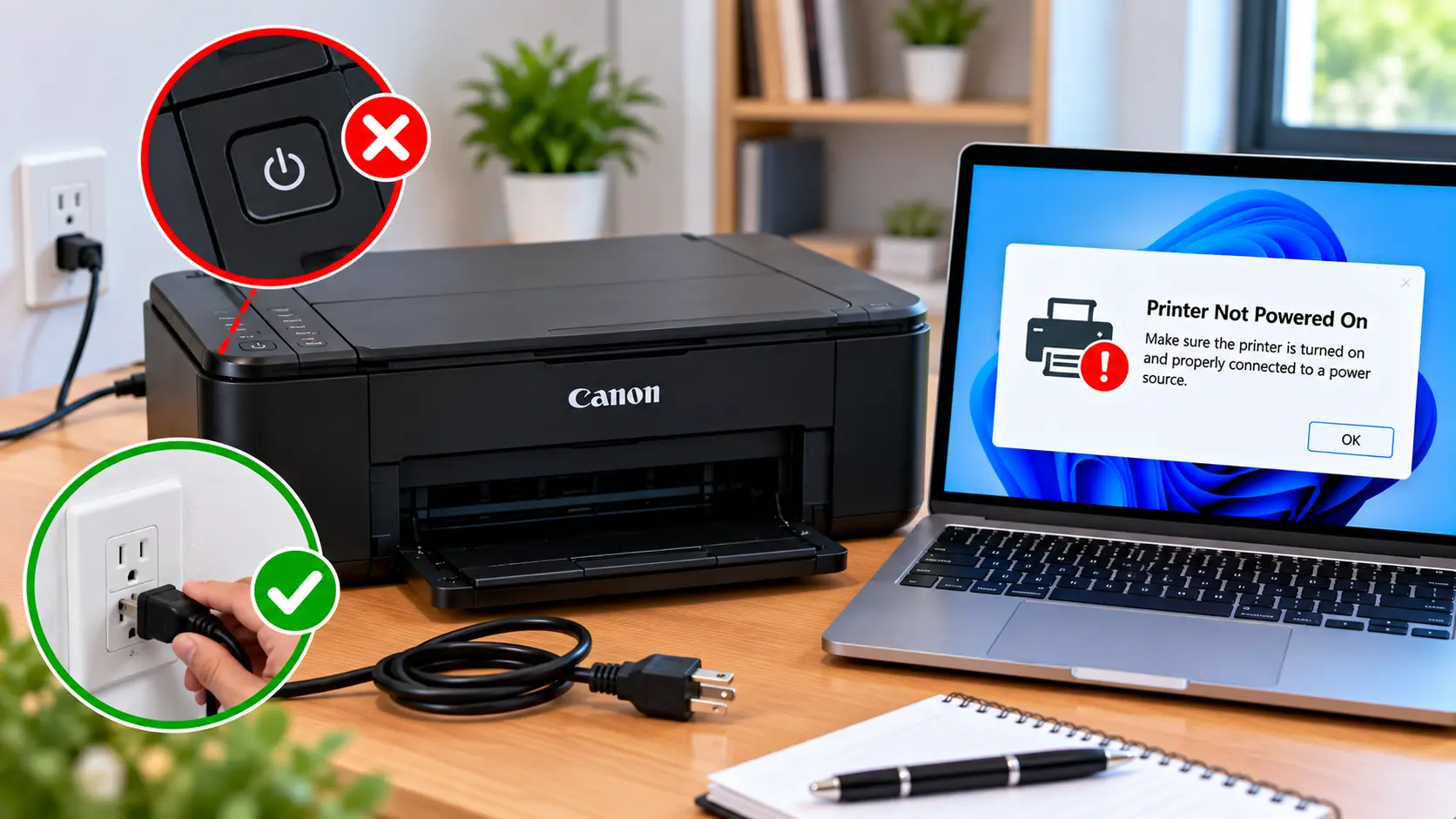
What Should I Do If My Canon Printer Won't Turn On?
Confirm that the power cable is firmly connected to the printer and a working electrical outlet. Check the cable and any external power adapter for visible damage, disconnect the printer from power briefly, reconnect it securely, and try the power button again. If there are signs of electrical damage, overheating, burning smell, liquid exposure, or a damaged cable, stop using the printer and seek qualified service.
Why Won't My Canon Printer Turn On?
A printer that appears completely dead does not automatically have a failed internal power supply. Start with simple external checks.
Possible causes include:
- Loose power cable.
- Wall outlet without power.
- Faulty extension lead or power strip.
- Damaged power cable.
- External power adapter issue on models that use one.
- Temporary electrical or startup condition.
- Printer shutting down immediately after startup.
- Power interruption or surge-related problem.
- Internal hardware or power-system fault.
The exact power design differs by Canon model, so do not assume that every printer uses the same cable, adapter, power supply, or reset procedure.
Step 1: Check the Printer Power Connection
Begin by checking the external power connection. Make sure the cable is properly seated at the printer and electrical outlet.
- Make sure your hands and the surrounding area are dry.
- Inspect the accessible power cable for obvious damage.
- Confirm the connector is firmly seated in the printer.
- Confirm the plug is firmly inserted into the electrical outlet.
- Press the printer's normal power button once.
- Allow enough time for the printer to begin its startup process.
Step 2: Check Whether the Electrical Outlet Works
Sometimes the printer is working normally but the outlet, extension lead, or power strip is not supplying power.
If it is safe to do so, verify that the outlet is providing power using an appropriate known-working device. If the printer is connected through an extension lead or power strip, the strip itself may also be switched off or faulty.
Where appropriate for your printer's documented power requirements, testing it directly from a suitable wall outlet can help determine whether a power strip or extension is involved.
Step 3: Power Cycle the Canon Printer
A temporary power or startup condition may sometimes clear after the printer has been disconnected from its power source and reconnected.
A general external power-cycle check is:
- If the printer responds, turn it off normally.
- Disconnect its power cable from the electrical source.
- Leave the printer disconnected briefly.
- Reconnect the cable securely.
- Press the normal power button.
- Observe the display, indicator lights, and startup sounds.
A power cycle is different from a factory reset. There is usually no reason to erase printer settings simply because the printer does not power on.
Step 4: Inspect the Power Cable or External Adapter
Examine only the externally accessible power components that can be checked safely.
Look for:
- Cuts or fraying.
- Cracked insulation.
- Bent or damaged connectors.
- Melted areas.
- Unusual discoloration.
- Loose connections.
- Visible damage to an external adapter, if the printer model uses one.
Do not substitute a random adapter or cable simply because its connector appears to fit. Electrical specifications and compatibility matter.
Canon Printer Has No Lights or Display
If pressing the power button produces no light, display activity, sound, or other response, focus first on power delivery.
Recheck:
- Wall power.
- Power-strip or extension status.
- Cable connection at the printer.
- Visible cable damage.
- External adapter condition, where applicable.
- Whether the power button is physically accessible and operating normally.
If a known-working power source and an appropriate external power connection still produce no response, the printer may require model-specific diagnosis or professional service.
Canon Printer Power Button Not Responding
If the power button appears unresponsive, do not repeatedly press it rapidly or force it.
First confirm that power is actually reaching the printer. A printer with no incoming power can look like it has a defective power button even when the button itself is not the cause.
If the button is physically stuck, broken, loose, or damaged, avoid opening the printer to repair the switch yourself unless you are appropriately qualified to service electrical equipment.
Canon Printer Turns On and Then Shuts Off
A printer that starts and then immediately shuts down is different from a printer that never receives power.
Observe what happens during startup:
- Does the display turn on?
- Do indicator lights appear?
- Does the printer display an error first?
- Does it make unusual sounds?
- Does it shut down at approximately the same point each time?
Disconnect unnecessary external USB devices while diagnosing the problem if doing so is safe and practical. However, do not open the printer or disconnect internal components.
Repeated shutdown can indicate a power, hardware, thermal, or other model-specific fault and may need professional diagnosis.
Canon Printer Won't Turn On After a Power Outage
If the problem started immediately after a power outage, first confirm that the outlet itself has returned to normal operation.
Then:
- Disconnect the printer from power.
- Check the external cable for visible damage.
- Confirm the outlet is working normally.
- Reconnect the printer securely.
- Try starting it normally.
If there was a known electrical surge, burning smell, smoke, unusual heat, or visible damage, do not keep reconnecting the printer to test it.
Can USB or Network Connections Cause a Power Problem?
A normal network configuration problem usually does not explain a printer that has absolutely no power lights or display.
However, when diagnosing unusual startup behavior, temporarily disconnecting unnecessary external USB connections can help separate a power/startup issue from an attached-device problem.
Do not disconnect internal wiring or dismantle the printer.
Printer Has Power but Is Not Responding
If the printer's lights or display are on, the issue may no longer be a true "won't turn on" problem.
The printer may instead be frozen, displaying an error, disconnected from the computer, or failing to respond to print commands.
In that situation, see: Canon Printer Not Responding .
Printer Turns On but Shows an Error
If the printer powers on and displays an error or support code, record the exact code or message. Troubleshoot that specific condition rather than continuing with general no-power steps.
Avoid using random reset combinations or service-mode procedures intended for a different Canon model.
Canon Printer Power Troubleshooting Table
| Symptom | What to Check |
|---|---|
| No lights or display | Check wall power, cable connection, power strip, and external adapter where applicable. |
| Printer works from another outlet | The original outlet, extension, or power strip may require attention. |
| Power button does nothing | Confirm power is reaching the printer before assuming the button has failed. |
| Printer turns on then shuts down | Observe errors, lights, unusual sounds, external connections, and shutdown timing. |
| Won't start after outage | Check outlet operation and external power components for damage. |
| Lights are on but printer does not respond | Troubleshoot the printer's error, connection, or responsiveness rather than treating it as a no-power issue. |
| Burning smell or unusual heat | Stop using the printer and seek qualified inspection. |
What Not to Do When a Canon Printer Won't Turn On
Power problems require extra care. Avoid troubleshooting methods that can create electrical or hardware risks.
- Do not open the printer's internal power supply.
- Do not touch exposed electrical components.
- Do not continue using a visibly damaged cable.
- Do not use a random power adapter just because the plug fits.
- Do not use the printer if it smells burnt or produces smoke.
- Do not use the printer after significant liquid exposure until it has been properly assessed.
- Do not perform random service-mode or reset procedures.
- Do not repeatedly reconnect a printer showing obvious electrical damage.
When Does the Printer Need Professional Service?
Basic external checks cannot diagnose every power failure. Consider qualified service when a suitable working power source and appropriate external power connection still produce no response.
Stop troubleshooting and seek qualified assistance if you notice:
- Smoke.
- Burning or strong electrical odor.
- Unusual heat.
- Melted or scorched components.
- Significant liquid exposure.
- Repeated immediate shutdown.
- Visible electrical damage.
Internal power-system diagnosis should be left to appropriately qualified service personnel.
Related Canon Printer Troubleshooting Guides
Frequently Asked Questions
Why won't my Canon printer turn on?
Possible causes include a loose power connection, unavailable wall power, faulty power strip, damaged cable, external adapter problem on applicable models, temporary startup issue, or an internal hardware fault.
What should I check first if my Canon printer has no power?
Start with the external power source. Check that the cable is securely connected and that the electrical outlet is working. Also inspect accessible power components for visible damage.
Why does my Canon printer turn on and then turn off?
Repeated shutdown can be related to power, hardware, thermal, or another model-specific condition. Observe any display message, indicator lights, unusual sounds, and when the shutdown occurs.
Why won't my Canon printer turn on after a power outage?
First confirm that the outlet is supplying normal power. Disconnect the printer briefly, inspect external power components, reconnect it securely, and try again. Stop if there are signs of electrical damage.
Should I factory reset a Canon printer that will not turn on?
A factory reset is generally not the first step for a no-power problem. A printer that has no power may not be able to perform a reset, and erasing settings does not repair an electrical power issue.
Can I repair the printer power supply myself?
Internal electrical repairs can involve hazardous components. Internal power-system diagnosis and repair should be handled by appropriately qualified service personnel.
What if the printer has power but does not respond?
If lights or the display are on, troubleshoot the printer's error state, computer connection, print queue, or responsiveness rather than treating it as a complete no-power problem.
Final Canon Printer Power Checklist
- Power cable securely connected.
- Electrical outlet checked.
- Power strip or extension checked if used.
- Cable inspected for visible damage.
- External adapter checked where applicable.
- Printer power-cycled safely.
- Startup lights and display observed.
- Any displayed error recorded.
- No random factory reset performed.
- No internal electrical components opened.