How to Connect Canon PIXMA TR4720 Printer to WiFi
You can connect a Canon PIXMA TR4720 to a wireless router using several supported setup methods. Easy WL Connect is convenient when completing setup from a computer or mobile device, while Manual Connect and WPS provide alternative ways to join the printer to your wireless network. This guide explains the connection process and common troubleshooting checks.
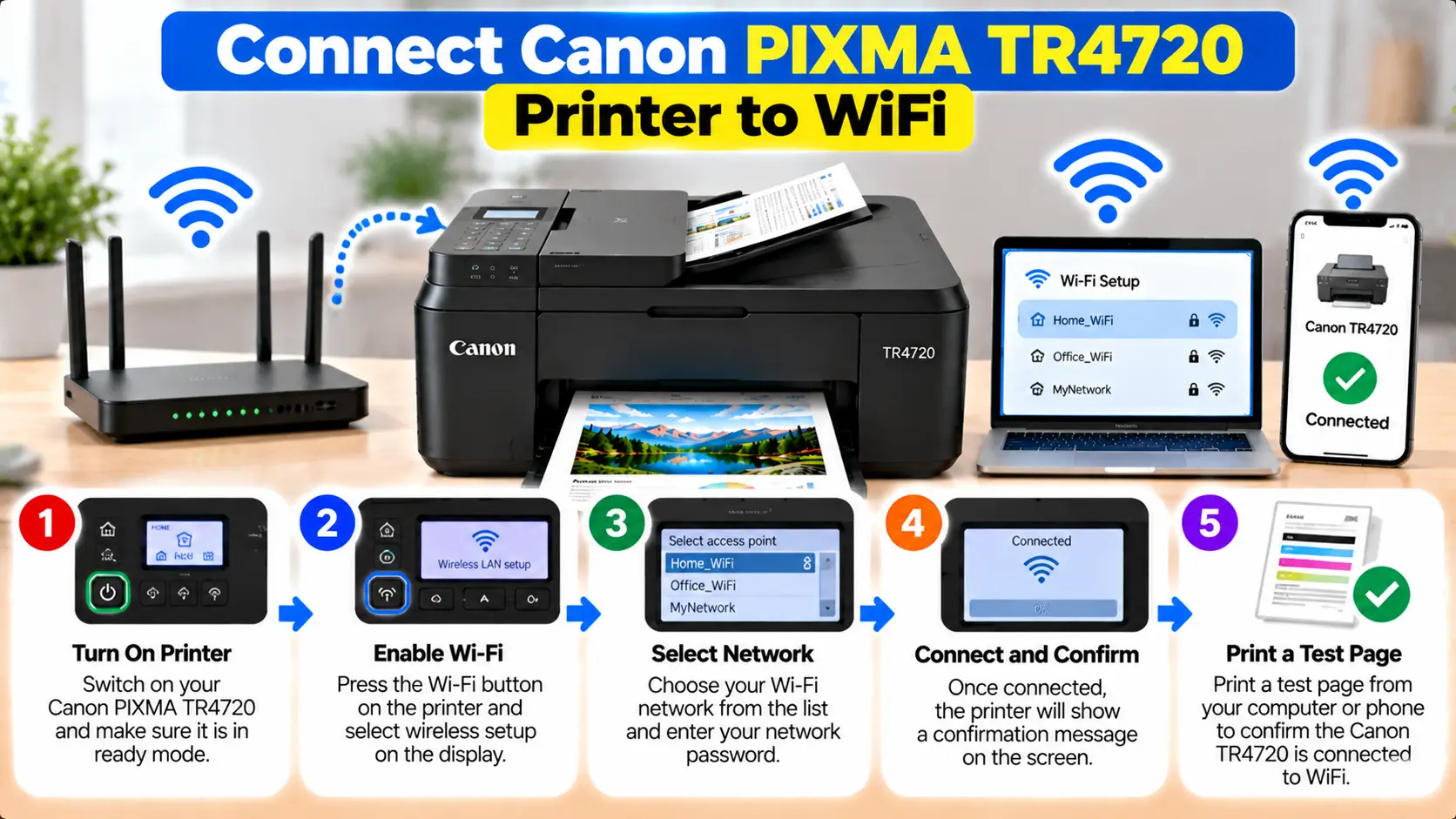
How Do I Connect My Canon TR4720 to WiFi?
One supported method is Easy WL Connect. Turn on the PIXMA TR4720, then press and hold the Menu/Wireless connect button for about three seconds. When the printer shows that connection preparation is complete, return to the setup application on your computer or smartphone and follow its instructions to complete the wireless connection.
Before Connecting the Canon TR4720 to WiFi
Prepare the printer and network before starting wireless setup.
- Make sure the PIXMA TR4720 is turned on.
- Confirm that your wireless router is powered on and operating.
- Know the wireless network name, also called the SSID.
- Have the wireless network password available if the network requires one.
- Make sure the computer or mobile device being used for setup has WiFi enabled.
- Allow any printer cleaning, alignment, or other active process to finish before starting network setup.
Canon PIXMA TR4720 WiFi Connection Methods
The TR4700-series network settings provide multiple methods for configuring a wireless connection.
| Method | When It Is Useful |
|---|---|
| Easy WL Connect | Prepares the printer so wireless router information can be supplied through a computer or compatible mobile device. |
| Manual Connect | Lets you select or enter wireless network information through the printer setup process. |
| WPS Push Button | Can be used when the wireless router supports the compatible WPS push-button method. |
| WPS PIN Code | Uses a PIN-based WPS setup when supported by the router. |
Method 1: Connect Canon TR4720 Using Easy WL Connect
Easy WL Connect is useful when you want to provide wireless router information to the printer through a computer, smartphone, or other supported setup device.
- Make sure the PIXMA TR4720 is turned on.
- Wait until any cleaning, alignment, printing, scanning, or other active process has finished.
- Locate the Menu/Wireless connect button on the printer.
- Press and hold the Menu/Wireless connect button for about three seconds.
- Wait until the printer indicates that connection preparation is complete.
- Return to the setup application on your computer or smartphone.
- Follow the on-screen instructions to supply the required wireless network information.
- Allow the setup process to finish before attempting to print.
Method 2: Connect Canon TR4720 to WiFi Manually
If you want to choose the wireless router using the printer's controls, use the documented manual connection option.
- Turn on the printer.
- Press the Setup button.
- Use the left or right control to select Wi-Fi setup.
- Press OK.
- Select Manual connect.
- Press OK.
- Select the wireless router or follow the displayed option for entering the router information.
- Enter the network password when required.
- Confirm the settings.
- Wait for the printer to complete the wireless connection.
Enter the SSID and password carefully. Network passwords can be case-sensitive.
Method 3: Connect Canon TR4720 Using WPS
The TR4700-series setup options also include WPS push-button and WPS PIN Code methods.
Use WPS only when your wireless router supports the corresponding WPS method.
WPS Push-Button Method
From the printer's WiFi setup options, choose the WPS push-button method and follow the instructions displayed by the printer and router.
The exact router button location and activation behavior depend on the router, so use the router manufacturer's instructions when necessary.
WPS PIN Code Method
The printer also provides a WPS PIN Code setup option. The displayed PIN must be registered with the compatible wireless router as directed during setup.
After the printer reports a successful connection, complete any remaining setup on the computer or mobile device.
Connect Canon PIXMA TR4720 to WiFi on a Computer
When using Easy WL Connect with a computer, first prepare the printer using the Menu/Wireless connect button. Then return to the printer setup process on the computer.
During setup:
- Keep the printer turned on.
- Make sure the computer's WiFi is enabled.
- Follow the setup prompts for the TR4720.
- Select the intended wireless network when requested.
- Enter the correct network password.
- Allow printer detection to complete.
- Finish the printer installation before closing the setup process.
Once setup is complete, make sure the computer is connected to the wireless router being used by the printer.
Connect Canon PIXMA TR4720 to WiFi Using a Phone
Easy WL Connect can also prepare the printer so network information can be supplied from a compatible smartphone setup process.
- Turn on the printer.
- Hold the Menu/Wireless connect button for about three seconds.
- Wait until the connection preparation screen appears.
- Make sure WiFi is enabled on the phone.
- Continue through the compatible Canon printer setup application.
- Follow the application instructions to configure the wireless connection.
- Complete setup and test the printer.
For broader mobile setup information, see: How to Connect Canon Printer to Phone .
WiFi and Wireless Direct Are Different
A normal WiFi connection and Wireless Direct are separate connection modes.
| Mode | Connection Path |
|---|---|
| WiFi | The TR4720 connects to a wireless router, and compatible devices communicate with it through the network. |
| Wireless Direct | A computer, phone, or tablet can connect directly to the printer instead of using the router as the normal connection path. |
Canon documents Wireless Direct separately under the printer's LAN settings. If your goal is to keep the printer available through your home or office router, configure the normal WiFi connection rather than confusing it with Wireless Direct.
How to Check Whether the TR4720 Is Connected
After setup, confirm that the printer and device can communicate before changing additional settings.
- Check the printer's wireless/network status.
- Confirm that the intended SSID was selected.
- Make sure the computer or phone is using the intended network.
- Check whether the TR4720 appears in the printer setup or print interface.
- Send a simple test print.
The TR4700-series LAN settings also provide an option to print network details, which can help when checking the printer's current network configuration.
Canon PIXMA TR4720 Won't Connect to WiFi
If the printer does not connect, work through the following checks before resetting the printer.
1. Check the Printer and Router
Confirm that both devices are powered on. If the printer is busy with another operation, wait for it to finish before restarting wireless setup.
2. Check the Network Name
Make sure you are selecting the intended wireless router. Nearby networks with similar names can make it easy to select the wrong SSID.
3. Re-enter the WiFi Password
Enter the network password carefully. Check uppercase and lowercase letters, numbers, and symbols.
4. Check the Device Network
Make sure the computer, smartphone, or tablet is connected to the intended wireless network when normal router-based WiFi printing is being used.
5. Check Whether WiFi Is Enabled on the Printer
The TR4700-series LAN settings include an option to enable or disable WiFi. If wireless communication has been disabled, enable it before attempting network printing.
6. Repeat the Correct Setup Method
If Easy WL Connect was interrupted, prepare the printer again and repeat the setup. If manual connection is being used, recheck the selected router and password.
7. Check Printer Network Information
Printing the printer's network settings can help confirm the current SSID and other network information before making further changes.
TR4720 WiFi Troubleshooting Checklist
| Problem | What to Check |
|---|---|
| TR4720 cannot find router | Router power, printer WiFi status, wireless setup method, and network availability. |
| Password rejected | Correct SSID, password spelling, uppercase/lowercase characters, numbers, and symbols. |
| Easy WL Connect does not continue | Printer setup state, setup application, device WiFi, and interrupted setup. |
| Printer connected but not found | Computer or phone network, selected printer, current printer network, and setup completion. |
| Printer connected to wrong network | Current SSID and network settings; reconnect to the intended router. |
| Phone cannot communicate with printer | Phone WiFi, printer connection mode, current network, and whether Wireless Direct or router WiFi is being used. |
Should You Reset the TR4720 for a WiFi Problem?
A network or factory reset should not be the first response to a routine WiFi connection problem.
First check:
- Printer power
- Router power
- WiFi enabled status
- Correct SSID
- Correct password
- Connection method
- Computer or phone network
- Printer network information
Reset network settings only when there is a clear reason to remove the existing configuration and you are ready to configure the wireless connection again.
Related Canon PIXMA TR4720 Guides
Frequently Asked Questions
How do I put my Canon TR4720 in WiFi setup mode?
For Easy WL Connect, make sure the printer is on and press and hold the Menu/Wireless connect button for about three seconds. Once connection preparation is complete, continue setup on the computer or smartphone.
Can the Canon TR4720 connect to WiFi manually?
Yes. The TR4700-series setup menu includes a Manual connect option that allows wireless router information to be configured through the printer setup process.
Does the Canon TR4720 support WPS?
Canon's TR4700-series setup documentation includes both WPS push-button and WPS PIN Code connection methods. The router must support the corresponding method.
Why won't my Canon TR4720 connect to WiFi?
Check that the printer and router are on, WiFi is enabled, the correct network is being selected, and the network password is entered accurately. Also confirm that the setup method was completed rather than interrupted.
Is Easy WL Connect the same as Wireless Direct?
No. Easy WL Connect helps configure the printer for a wireless network. Wireless Direct is a separate mode that lets compatible devices connect directly to the printer.
How can I check which WiFi network my TR4720 uses?
Review the printer's LAN settings or print its network setting information. This can help confirm the current SSID and other network details.
Final Canon TR4720 WiFi Setup Checklist
- Printer is turned on.
- Wireless router is operating.
- Printer WiFi is enabled.
- Correct SSID has been selected.
- Correct WiFi password has been entered.
- Easy WL Connect, Manual Connect, or the intended WPS method has completed.
- Computer or phone is using the intended network.
- TR4720 appears as an available printer.
- Test printing works.