How to Fix a Canon Printer in Error State
A Canon printer may appear in an error state when the printer itself needs attention or when Windows cannot complete a print job correctly. Start by checking the message shown on the printer, then inspect the paper, covers, ink status, connection, print queue, and printer configuration before moving to driver-related troubleshooting.
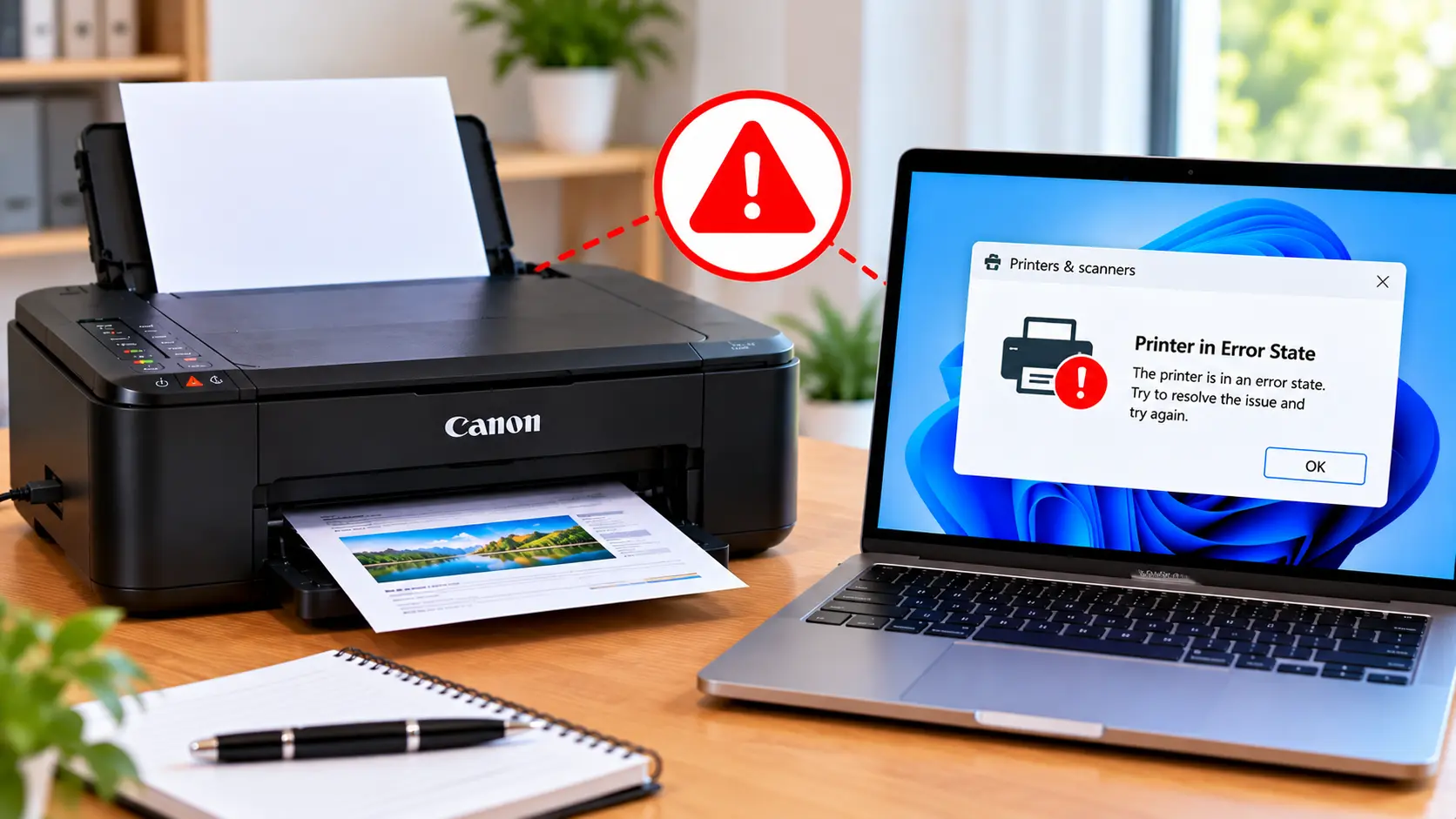
What Should You Do When a Canon Printer Is in Error State?
First check the printer's display or computer for a specific message or support code. Then verify that the printer has paper, its covers are properly closed, there is no paper jam, and the USB or WiFi connection is working. If the printer itself appears ready, check the Windows print queue, printer status, and driver installation.
What Does "Canon Printer in Error State" Mean?
"Printer in error state" is a general status rather than one single Canon error code. It indicates that printing cannot continue normally until the underlying problem is resolved.
The cause may be related to the physical printer, its connection, the Windows print system, or the printer software.
Common areas to check include:
- Paper supply or a paper jam.
- An open or improperly closed printer cover.
- An ink-related warning.
- A USB connection problem.
- A lost WiFi or network connection.
- A stuck print job.
- An offline or unavailable printer.
- A printer driver problem.
- A specific Canon support code.
1. Check for a Canon Support Code First
Before changing Windows settings, look at the printer display, indicator lights, and any message shown on your computer.
If the printer provides a specific Canon support code, troubleshoot that code rather than treating the problem only as a generic error state.
For example, the troubleshooting process for a paper-related code can be very different from the process for a hardware-related or ink-related code.
2. Check the Printer for Basic Problems
Inspect the printer itself before reinstalling software or changing advanced settings.
Check the Paper
Make sure suitable paper is loaded correctly and that the paper guides are positioned properly.
Check for a Paper Jam
If the printer reports a jam, stop printing and follow the jam-removal procedure appropriate for your model. Check accessible paper paths for jammed or torn paper.
See: How to Clear a Canon Printer Paper Jam .
Check the Covers
Make sure any cover or access panel that was opened for paper or ink access is properly closed.
Check Ink-Related Messages
Look for an ink, cartridge, or print-system message on the printer. Do not assume every error-state message means that the driver is damaged.
3. Restart the Canon Printer
If no specific instruction on the printer tells you otherwise, a normal restart can clear some temporary communication or processing problems.
- Turn the printer off normally.
- Disconnect its power if appropriate for your model and situation.
- Wait briefly.
- Reconnect the power.
- Turn the printer on.
- Wait until startup is complete before sending a new print job.
Do not repeatedly power-cycle a printer that shows smoke, unusual heat, a burning smell, sparking, or visible electrical damage. Stop using it and follow appropriate service guidance.
4. Check the Printer Connection
Once the printer itself appears ready, verify its connection to the computer.
For a USB Printer
- Make sure the USB cable is securely connected.
- Check whether Windows detects the printer.
- If practical, reconnect the cable directly to the computer rather than through an unreliable hub or adapter.
- Check the cable for obvious physical damage.
For a WiFi Printer
- Confirm the printer is connected to the intended wireless network.
- Confirm the computer has network access.
- If you have multiple network names, verify the printer and computer are using the intended network.
- Check whether the printer lost its WiFi connection after a router or password change.
For wireless problems, see: Canon Printer Won't Connect to WiFi .
5. Check the Windows Print Queue
A failed or stuck print job can prevent later jobs from printing.
On current Windows systems, open:
Settings → Bluetooth & devices → Printers & scanners
Select your Canon printer and open its print queue. If failed or unnecessary jobs are stuck, cancel them and try printing a fresh document.
If the queue repeatedly freezes, the Windows Print Spooler may also require troubleshooting.
6. Check Whether the Canon Printer Is Offline
Error state and offline status are related in some situations, but they are not identical messages.
Check the printer's status in Windows and make sure you are sending the document to the correct Canon printer.
If Windows specifically reports the device as offline, use the dedicated troubleshooting guide: How to Fix Canon Printer Offline .
7. Make Sure the Correct Printer Is Selected
Multiple printer entries can appear on a computer, especially after reinstallations or connection changes.
Before printing, open the application's print window and confirm that the intended Canon printer is selected.
If another printer, an old duplicate entry, or a virtual printer is selected, your document may not reach the physical Canon printer you expect.
8. Check the Canon Printer Driver
If the printer is physically ready and properly connected but Windows still cannot print, check the installed printer software and driver.
A missing, incompatible, or damaged driver can interfere with communication between Windows and the printer.
Start by checking whether Windows recognizes the correct printer. If driver repair or reinstallation is necessary, use software intended for the exact printer model and operating system.
See: How to Update Canon Printer Driver and Canon Printer Driver Guide .
9. Remove and Re-add the Printer if Necessary
If Windows continues to show an incorrect or broken printer configuration, removing and adding the printer again can rebuild its Windows device configuration.
In Windows 11, go to:
Settings → Bluetooth & devices → Printers & scanners
Select the affected printer and review the available device options. If you decide to remove it, make sure you know how the printer connects before doing so, because you will need to add it again.
For a network printer, confirm that it is connected to the network before attempting to add it again.
10. Run the Windows Printer Troubleshooter
Windows 11 provides printer diagnostics through the Get Help troubleshooting experience. This can help identify some Windows-side printer problems.
Use it after basic physical and connection checks, especially when the printer itself does not display a specific hardware or support-code error.
11. Restart the Print Spooler When Jobs Stay Stuck
The Print Spooler is the Windows service that manages print jobs. If print jobs repeatedly freeze or remain in the queue, restarting the service may help.
- Press Windows + R.
- Type services.msc.
- Press Enter.
- Find Print Spooler.
- Right-click it and select Restart.
After the service restarts, check the queue and test printing again.
Should You Factory Reset the Canon Printer?
A factory reset should not be the first response to a generic printer error state.
A reset can remove network or customized settings without correcting the actual cause of a paper jam, open cover, hardware support code, connection problem, or Windows print-queue issue.
Use a reset only when it is appropriate for the exact problem and printer model.
Canon Printer Error State Troubleshooting Table
| Symptom | What to Check |
|---|---|
| Specific support code appears | Troubleshoot the displayed Canon support code first. |
| Paper warning | Check paper supply, loading, paper path, and any displayed instructions. |
| Paper jam message | Stop printing and safely clear the jam according to the printer model. |
| Printer shows offline | Check power, USB/network connection, and Windows printer status. |
| Jobs remain in queue | Cancel stuck jobs and check the Windows Print Spooler. |
| USB printer not responding | Check the cable, USB connection, and whether Windows detects the printer. |
| WiFi printer unavailable | Check the printer's wireless connection and network configuration. |
| Error continues after connection checks | Check Windows diagnostics, printer installation, and the appropriate driver. |
Common Mistakes to Avoid
- Reinstalling drivers before checking the error shown on the printer.
- Ignoring a specific Canon support code.
- Assuming every error state is a WiFi problem.
- Repeatedly sending print jobs into a stuck queue.
- Performing a factory reset as the first fix.
- Following reset sequences intended for a different Canon model.
- Opening or dismantling internal electrical components.
Related Canon Troubleshooting Guides
Frequently Asked Questions
Why is my Canon printer in error state?
The message can appear for several reasons, including a printer condition requiring attention, connection problems, stuck print jobs, offline status, or a driver or Windows printing issue. Check for a specific printer message or support code first.
How do I get my Canon printer out of error state?
Check the printer for a specific message, paper problems, open covers, jams, or ink warnings. Then verify its USB or WiFi connection and check the Windows print queue and printer status.
Can a paper jam cause a printer error state?
Yes. A paper jam can stop printing and may trigger an error or warning. Follow the appropriate jam-removal instructions for your exact printer model.
Can a stuck print queue cause printing problems?
Yes. A failed print job can remain in the queue and interfere with later jobs. Cancel stuck jobs and check the Print Spooler if the queue repeatedly freezes.
Should I reinstall the Canon driver?
Driver repair or reinstallation can help when the printer is physically ready and connected but Windows still cannot communicate with it. Check simpler printer and connection problems first.
Should I reset my Canon printer to fix an error state?
Not as the first troubleshooting step. A factory reset may remove settings without fixing the actual cause. Identify the specific printer, connection, queue, or support-code problem first.
Final Error-State Checklist
- Printer is powered on normally.
- No specific support code has been overlooked.
- Paper is loaded correctly.
- No paper jam is present.
- Printer covers are properly closed.
- No unresolved ink or cartridge message is shown.
- USB or WiFi connection is working.
- Correct Canon printer is selected.
- Print queue has been checked.
- Printer is not unexpectedly offline.
- Windows printer diagnostics have been checked when appropriate.
- Driver troubleshooting has been performed only if needed.