How to Fix Canon PIXMA MG2522 Driver Not Installing
If the Canon PIXMA MG2522 driver is not installing, first check the USB connection, Windows printer detection, previous driver installation, and the software being used for setup. A failed driver installation does not automatically mean the printer is defective. This guide explains how to identify and troubleshoot common installation problems.
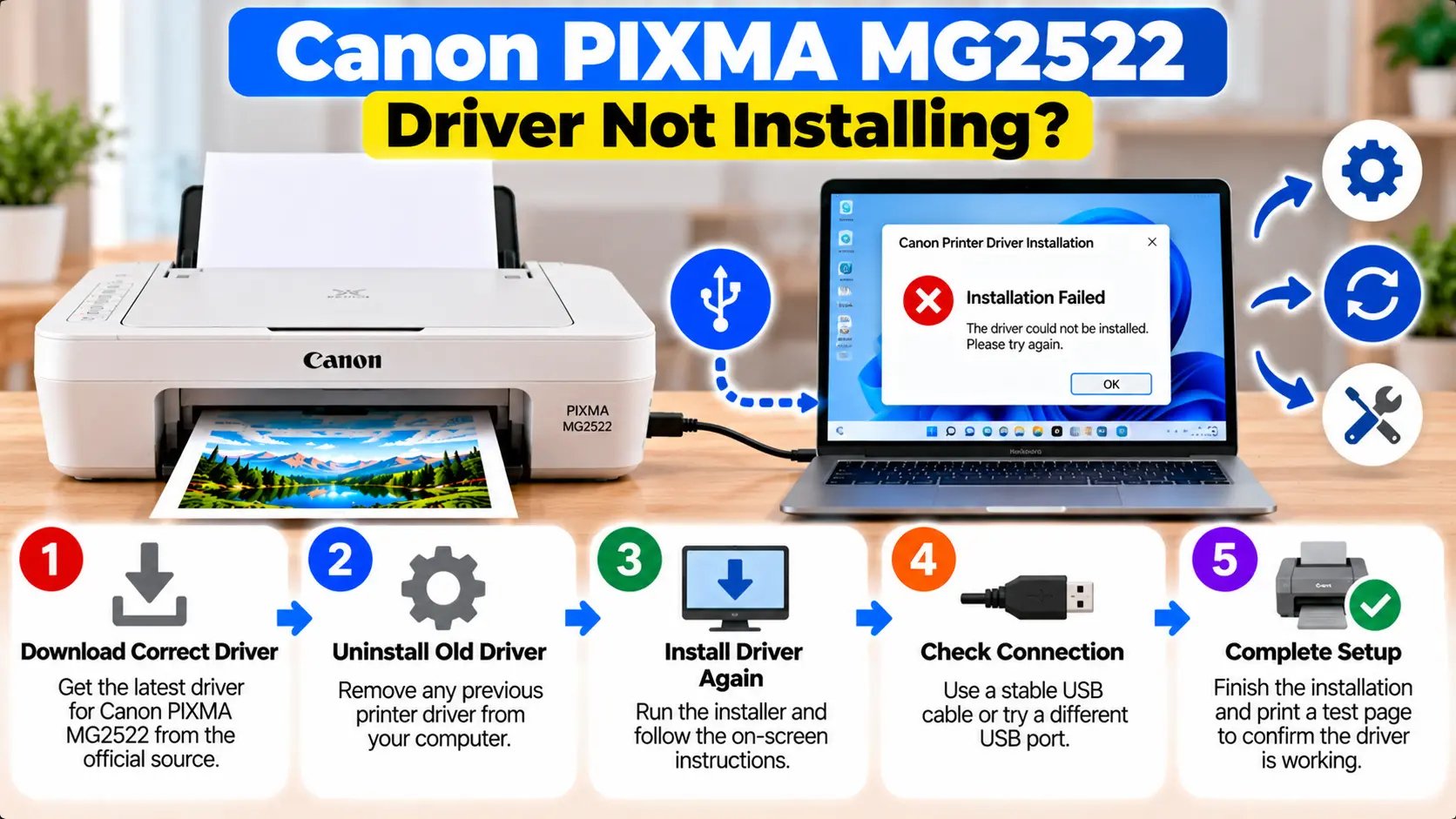
Why Is My Canon MG2522 Driver Not Installing?
A Canon PIXMA MG2522 driver installation can fail when Windows does not detect the USB-connected printer correctly, an earlier installation conflicts with the new setup, the selected software does not match the operating system, or a temporary Windows printer service or driver problem interrupts installation. Start with the USB connection and Windows printer detection before repeatedly reinstalling the software.
Why Canon PIXMA MG2522 Driver Installation Can Fail
Driver installation involves the printer, USB connection, Windows, and the driver package. A problem with any part of that chain can interrupt setup.
Common causes include:
- The printer is not being detected through USB.
- The USB cable is loose, damaged, or connected through a problematic port or hub.
- A previous MG2522 driver installation is incomplete or conflicting.
- The installer does not match the Windows version or system.
- Windows already has a problematic printer entry.
- The printer driver is outdated or corrupted.
- Windows printer services are temporarily not responding correctly.
- The installation was interrupted before setup completed.
Before Fixing the MG2522 Driver Installation
Before making larger changes to Windows, perform these basic checks:
- Save any open work.
- Confirm that you are working with the PIXMA MG2522.
- Check your current Windows version.
- Make sure the printer has power.
- Check the USB connection.
- Close unnecessary applications.
- Finish pending Windows updates and restart if Windows requires it.
- Avoid running multiple printer installers at the same time.
Canon's MG2500-series driver documentation specifically recommends checking the USB connection and closing running applications before driver installation.
Step 1: Check the MG2522 USB Connection
If Windows cannot communicate with the printer, driver setup may stop at the printer-detection stage.
- Check that the USB cable is securely connected to the printer.
- Check that the other end is securely connected to the PC.
- If possible, connect the printer directly to the computer rather than through an unnecessary USB hub.
- Try another working USB port.
- Inspect the USB cable for visible damage.
- If available, test with another compatible USB cable.
If Windows reacts when the cable is connected or disconnected, that can indicate that the computer is at least detecting a USB device. It does not, however, confirm that the correct printer driver has installed successfully.
Step 2: Check Whether Windows Detects the Printer
On Windows 11, open:
Settings → Bluetooth & devices → Printers & scanners
Look for the Canon printer in the installed printer list.
If the printer is not present, make sure the USB cable is connected and the printer is turned on. You can then use the Add device option under the printer settings.
Windows can automatically install many USB-connected printers. Windows Update may also provide updated printer drivers.
Step 3: Run the Windows Printer Troubleshooter
If Windows 11 detects a printer problem but the cause is unclear, use the automated printer troubleshooter available through the Get Help app.
The troubleshooter can check common Windows printer configuration and communication problems before you move on to more invasive troubleshooting.
After it completes, retry the MG2522 installation or check whether the printer now appears under Printers & scanners.
Step 4: Remove a Failed or Previous Installation
An incomplete previous driver installation can interfere with a clean reinstall.
Canon's MG2500-series driver documentation advises removing the previously installed MP Drivers before installing the latest version.
If the MG2522 already appears in Windows but is clearly associated with a failed installation, you can also review the printer entry under:
Settings → Bluetooth & devices → Printers & scanners
Select the problematic printer and use Remove when a clean printer reinstallation is appropriate.
Step 5: Restart the PC Before Reinstalling
After removing a failed installation, restart the computer before trying again.
A restart can refresh Windows services, release installer processes, and clear temporary device detection problems.
After Windows starts again:
- Do not launch multiple printer installers.
- Close unnecessary applications.
- Check that Windows is operating normally.
- Prepare the MG2522 for a fresh installation.
Step 6: Reinstall the Correct MG2522 Driver
Use software intended for the exact printer and operating system. Do not assume that a driver for another PIXMA model will work correctly.
Before installation, verify:
- Printer model: PIXMA MG2522
- Current Windows version
- System type when relevant
- Printer connection type
Start the appropriate setup and follow its connection instructions carefully. If the installer asks you to connect or disconnect the USB cable at a particular stage, follow the on-screen sequence.
For broader driver guidance, see: Download Canon Printer Drivers .
Step 7: Check the Printer in Device Manager
If Windows recognizes that a device is connected but the driver still fails, Device Manager can help identify a driver problem.
- Open Device Manager.
- Look under relevant printer, print queue, or device categories.
- Locate the printer or problematic device entry if it is present.
- Right-click the entry and review the available driver options.
Windows supports updating a driver from Device Manager. If the installed driver is clearly corrupted or incompatible, Windows also provides an uninstall-device option, after which a restart can allow the system to attempt installation again.
Do not uninstall unrelated USB controllers or other hardware simply because the printer driver is failing.
Step 8: Check Windows Update for Printer Drivers
Windows Update can provide compatible or updated printer drivers. This is particularly useful when Windows recognizes the printer but the existing driver is missing or incomplete.
After Windows installs or updates a printer driver, restart the computer if requested and then check:
Settings → Bluetooth & devices → Printers & scanners
Confirm that the printer appears and then try a test print.
Step 9: Check Whether You Are Using an ARM-Based PC
This check can matter on some newer Windows computers, including certain Copilot+ PCs. Microsoft notes that some ARM-based Windows PCs can have problems adding a printer when a manufacturer-provided installer is used.
To check your system type in Windows 11, open:
Settings → System → About
Review the system information under device specifications. If the computer is ARM-based and the manufacturer installer fails, Windows' built-in Add printer workflow may be an appropriate alternative.
Step 10: Restart the Windows Print Spooler
If printer detection or printing remains stuck, restart the Print Spooler service.
- Press Windows + R.
- Type services.msc.
- Press Enter.
- Find Print Spooler.
- Right-click it.
- Select Restart.
Once the service restarts, check the printer again and retry the installation if necessary.
Test the MG2522 After Driver Installation
Do not assume the problem is solved simply because the installer closes successfully.
Confirm that:
- The MG2522 appears under Printers & scanners.
- Windows does not show an obvious driver error.
- The printer can receive a print job.
- A test page or simple document prints.
- Scanning works if the required scanner components have also been installed.
Canon MG2522 Driver Troubleshooting Table
| Problem | What to Check |
|---|---|
| Installer cannot detect MG2522 | Printer power, USB cable, USB port, installation sequence, and Windows device detection. |
| Driver installation stops | Previous installation, running applications, Windows state, and correct driver package. |
| Printer appears as unknown device | USB connection, Device Manager, driver compatibility, and failed previous installation. |
| Printer appears but will not print | Printer status, selected printer, print queue, driver, and Print Spooler. |
| Driver worked before an update | Driver update status, Device Manager, Windows Update, and available rollback options. |
| Manufacturer installer fails on newer PC | Check whether the PC is ARM-based and review the Windows built-in printer installation method. |
What Not to Do When the MG2522 Driver Won't Install
- Do not download random driver packages from unknown websites.
- Do not install a driver simply because another PIXMA model has a similar name.
- Do not follow WiFi setup instructions for this USB connection problem.
- Do not repeatedly launch multiple copies of the installer.
- Do not delete unrelated Windows system files.
- Do not uninstall unrelated USB controllers as a first troubleshooting step.
- Do not factory-reset the printer simply because a Windows driver installation failed.
Related Canon PIXMA MG2522 Guides
Frequently Asked Questions
Why won't my Canon PIXMA MG2522 driver install?
Check the USB connection, Windows printer detection, previous driver installation, and whether the software matches the printer and operating system. A temporary Windows printer service problem can also interfere with setup.
Why can't the MG2522 installer detect my printer?
Make sure the printer has power and the USB cable is connected securely. Try another suitable USB port or compatible cable if necessary, then repeat the correct installation sequence.
Can Windows install the MG2522 automatically?
Windows can automatically install many wired printers and may obtain compatible drivers through Windows Update. Additional model-specific software may still be useful for full printer or scanner functionality.
Should I remove an old MG2522 driver first?
If a previous installation is incomplete or conflicting, a clean reinstall can help. Canon's MG2500-series documentation advises removing previously installed MP Drivers before installing the latest version.
Does the MG2522 driver problem mean the printer is broken?
Not necessarily. USB connection problems, Windows detection, incompatible software, previous driver installations, and Windows printer services can all cause installation failures even when the printer hardware itself is functional.
Should I use a third-party driver updater?
It is safer to use Windows Update or software intended for the exact printer and operating system rather than relying on unknown third-party driver-updater utilities.
Final MG2522 Driver Installation Checklist
- Printer model confirmed as PIXMA MG2522.
- Windows version checked.
- Printer power checked.
- USB cable connected securely.
- USB port tested.
- Failed previous installation removed if needed.
- Computer restarted.
- Appropriate printer driver installed.
- Windows recognizes the printer.
- Test print completed successfully.