How to Connect My Canon PIXMA MG2522 to My PC
Connecting a Canon PIXMA MG2522 to a PC is primarily a USB setup process. Prepare the printer, install the appropriate software for your Windows computer, connect the USB cable when required, and confirm that Windows recognizes the printer. This guide walks through the process and explains what to check if the MG2522 is not detected.
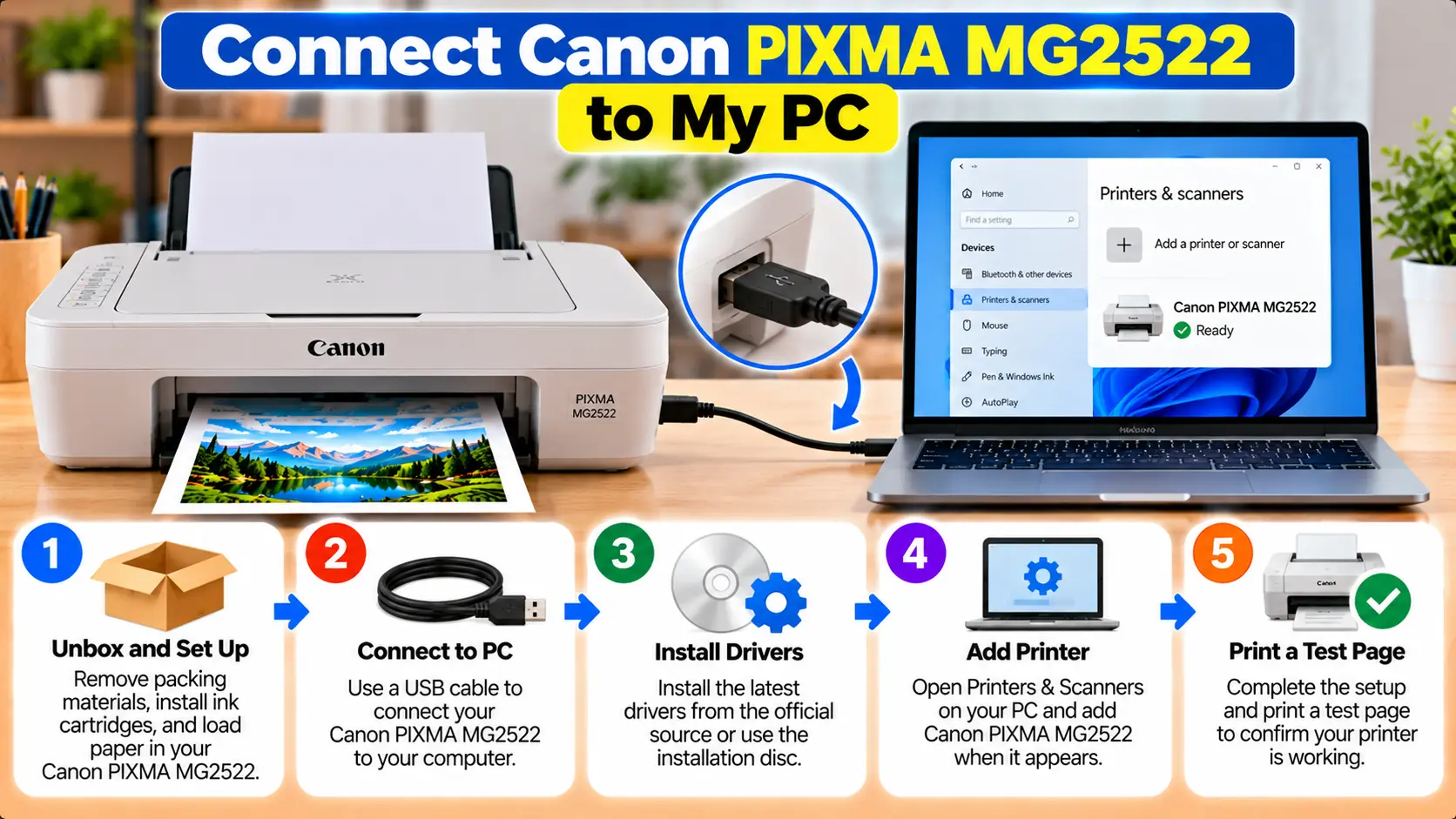
How Do I Connect My Canon MG2522 to My PC?
Turn on the Canon PIXMA MG2522, obtain the appropriate software for your operating system, start the installation, and connect the printer to the PC using a suitable USB cable when the setup process asks you to do so. After installation, confirm that the MG2522 appears as an available printer and run a test print.
Before Connecting the Canon PIXMA MG2522 to a PC
A few basic checks can prevent unnecessary installation problems.
- Make sure the PIXMA MG2522 is placed on a stable surface.
- Connect the printer to power and turn it on.
- Install the ink cartridges correctly.
- Load suitable paper.
- Make sure the PC is running normally.
- Have a suitable USB printer cable available.
- Check the exact Windows version before downloading or installing printer software.
Does the Canon PIXMA MG2522 Connect to a PC by USB?
Yes. A direct USB connection is the standard method for connecting the PIXMA MG2522 to a computer. Canon's MG2500-series documentation includes printer-driver installation and troubleshooting specifically for a printer connected directly to a computer through USB.
This is important because users sometimes search for a WiFi setup procedure for the MG2522 when trying to install it on a PC. For this model, use the supported USB connection rather than following wireless instructions written for a different PIXMA model.
How to Connect Canon PIXMA MG2522 to a Windows PC
Follow this general installation sequence:
- Turn on your Windows PC.
- Make sure the PIXMA MG2522 is correctly prepared and powered on.
- Obtain the appropriate Canon software or driver package for the MG2522 and your Windows version.
- Close unnecessary applications before starting the installation.
- Run the setup package.
- Follow the installation prompts displayed on the computer.
- When the installer requests the printer connection, connect the MG2522 to the PC using the USB cable.
- Make sure the USB connectors are fully inserted into the printer and computer.
- Allow the installer time to detect the printer.
- Complete the remaining on-screen instructions.
- Restart the computer if the installer specifically requests it.
- Run a test print after installation.
Connect the MG2522 USB Cable Correctly
A loose, damaged, or unsuitable USB connection can cause the printer to disappear during setup or prevent Windows from communicating with it.
Canon's MG2500-series troubleshooting guidance recommends checking that the USB cable is properly connected to both the printer and computer. Canon also recommends a certified Hi-Speed USB cable and notes a recommended cable length of about 3 meters or less for Hi-Speed USB troubleshooting.
If the printer is not detected:
- Disconnect and reconnect the USB cable firmly.
- Try another working USB port on the PC.
- Avoid an unnecessary USB hub while diagnosing the problem.
- Inspect the cable for visible damage.
- Try another compatible USB cable if one is available.
Install the Canon PIXMA MG2522 Printer Software
Windows needs an appropriate printer driver to communicate correctly with the MG2522. Additional Canon software may provide scanning or other printer functions.
When obtaining software, match all of the following:
- Printer model
- Operating system
- Operating-system version
- System architecture when relevant
Use current software information for the exact printer and operating system rather than installing a driver intended for an unrelated PIXMA model.
See our broader guide: Download Canon Printer Drivers .
Check the Canon MG2522 in Windows
After installation, check whether Windows can see the printer.
On current Windows 11 systems, you can open:
Settings → Bluetooth & devices → Printers & scanners
Look for the Canon PIXMA MG2522 or the corresponding installed Canon printer entry.
If the printer appears, open its settings and verify that Windows is communicating with the intended device.
If the printer does not appear after the Canon installation has completed, check the USB connection before repeatedly reinstalling software.
Test the Canon PIXMA MG2522 After Setup
A successful installation should be confirmed with an actual print test.
- Make sure the printer is on.
- Confirm that paper is loaded.
- Open a simple document on the PC.
- Select Print.
- Choose the Canon PIXMA MG2522 from the printer list.
- Review the print settings.
- Send the print job.
If the job remains in the queue, first determine whether the problem is the USB connection, printer status, Windows print queue, or installed driver.
Can the PIXMA MG2522 Scan to a PC?
The MG2522 includes scanning functionality. If printing works but scanning does not, do not assume the USB connection has completely failed. Scanning can depend on the appropriate scanner driver or compatible scanning software being installed and selected correctly.
Check that:
- The printer is powered on.
- The USB cable is connected securely.
- The required scanner software or driver is installed.
- The MG2522 is selected as the scanner.
- Another application is not preventing access to the scanner.
Canon PIXMA MG2522 Not Detected by PC
If the installation software cannot detect the printer, start with the physical connection.
1. Check Printer Power
Confirm that the MG2522 is turned on and is not displaying a condition that needs attention.
2. Reconnect the USB Cable
Disconnect the USB cable from the printer and PC, then reconnect it securely.
3. Try Another USB Port
A problem with a particular computer USB port can prevent printer detection. Test another suitable port directly on the PC.
4. Check the USB Cable
Replace the cable temporarily with another compatible cable if you suspect it is damaged or unreliable.
5. Restart the Printer and PC
A normal restart can clear a temporary USB or operating-system detection problem. Shut down the printer normally, restart the PC, turn the printer back on, and retry the connection.
6. Reinstall the Appropriate Driver
If the physical connection is working but installation remains incomplete, remove the failed installation as appropriate and reinstall the correct software for the printer and Windows version.
Canon MG2522 PC Connection Troubleshooting
| Problem | What to Check |
|---|---|
| PC does not detect MG2522 | Printer power, USB cable, USB port, installation sequence, and printer driver. |
| Driver installation fails | Correct model, Windows version, failed previous installation, USB connection, and installer prompts. |
| Printer appears but does not print | Correct printer selection, print queue, USB connection, printer status, and driver. |
| Printer disconnects repeatedly | USB cable condition, USB port, direct connection, and computer USB operation. |
| Printing works but scanning fails | Scanner driver, scanning application, selected scanner, and USB connection. |
| Wrong printer receives the job | Printer selected in the application and Windows printer settings. |
Common MG2522 Setup Mistakes to Avoid
- Do not follow wireless setup instructions for a different Canon PIXMA model.
- Do not install random drivers from unknown download websites.
- Do not repeatedly disconnect the USB cable while the installer is actively configuring the printer.
- Do not assume the printer itself is defective before checking the USB cable and PC port.
- Do not perform a factory reset merely because Windows has not detected the USB printer.
- Do not use registry-cleaning or third-party driver-updater tools as the first solution.
Related Canon PIXMA MG2522 Guides
Frequently Asked Questions
How do I connect my Canon PIXMA MG2522 to my PC?
Prepare and power on the printer, install the appropriate software for your Windows system, and connect the MG2522 to the computer using a compatible USB cable at the stage requested by the setup process.
Can I connect the Canon MG2522 to my PC with USB?
Yes. Direct USB is the standard computer connection used for the PIXMA MG2522.
Why is my computer not detecting my Canon MG2522?
Check that the printer is on, reconnect the USB cable, try another suitable USB port, inspect the cable, and confirm that the correct printer software is being installed.
Do I need a driver for the Canon MG2522?
The computer needs appropriate printer support for the MG2522. Using the correct Canon driver or software package for the operating system can also provide the printer and scanner functionality intended for the model.
Can I install the Canon MG2522 without a CD?
A physical setup disc is not necessarily required when appropriate software for the printer and operating system is available electronically. Use current model-specific software information rather than downloading an unknown installer.
Why does my MG2522 print but not scan?
The USB connection may still be working for printing while the scanner driver, scanning application, or scanner selection needs attention. Check the scanning software and confirm that the MG2522 is selected.
Final Canon MG2522 PC Setup Checklist
- PIXMA MG2522 is powered on.
- Ink cartridges are installed.
- Paper is loaded.
- Correct Windows software has been selected.
- USB cable is connected securely.
- Windows recognizes the printer.
- MG2522 is selected for printing.
- Test page or document prints successfully.
- Scanner is tested if scanning is required.