How to Set Up a Canon PIXMA MG2522 Printer
Setting up a Canon PIXMA MG2522 involves preparing the printer, installing the ink cartridges, loading paper, connecting the printer directly to a computer with USB, installing the appropriate software, and completing a test print. The MG2522 uses a USB connection rather than a built-in WiFi connection, so there is no normal wireless-router setup process for this model.
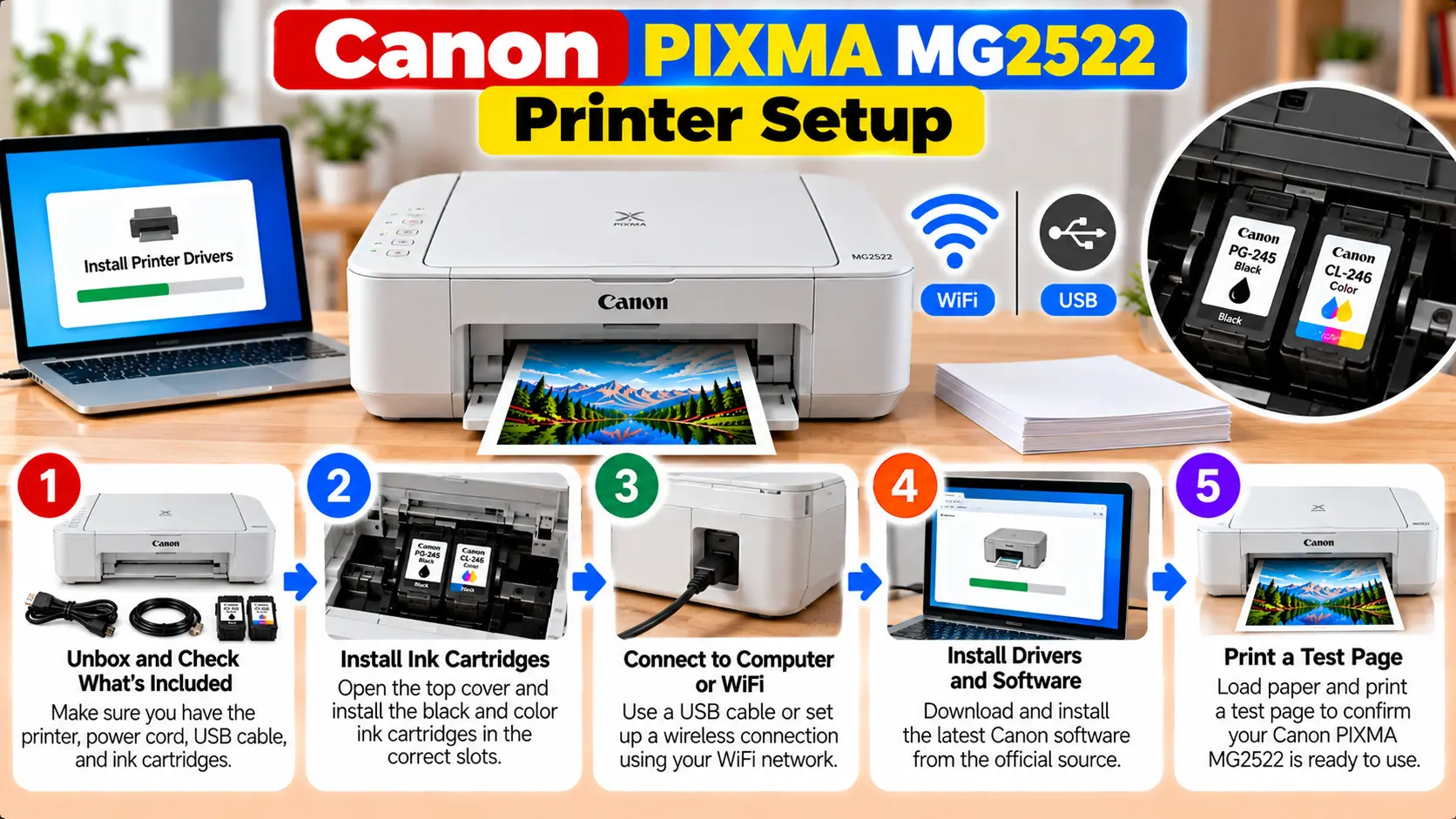
How Do I Set Up a Canon PIXMA MG2522?
Place the MG2522 on a stable surface, connect its power, install the black and color FINE cartridges, load compatible paper in the rear tray, install the appropriate printer software on your computer, and connect the printer to the computer using USB. After installation, print a test page and check the scanner if you plan to use scanning.
Before Setting Up the Canon PIXMA MG2522
Prepare the basic items you need before starting the installation. Doing this first can prevent interruptions during software or USB setup.
- Canon PIXMA MG2522 printer
- Printer power cord
- Compatible black and color FINE cartridges
- Compatible printing paper
- Computer you want to use with the printer
- Suitable USB printer cable
- Printer software appropriate for the computer and operating system
Canon PIXMA MG2522 Setup Step by Step
Step 1: Unpack the Printer
Remove the printer from its packaging and place it on a stable, level surface with enough room for loading and ejecting paper.
Remove shipping materials and protective packing that were included to secure the printer during transport.
Step 2: Connect the Power
Connect the supplied power cord and turn on the printer using its power button.
Allow the printer to complete its initial startup operation before opening covers or attempting to print.
Step 3: Install the FINE Ink Cartridges
Open the printer cover and wait for the FINE cartridge holder to reach its replacement position.
Do not manually force or stop the cartridge holder. Wait until it has stopped moving before handling the cartridges.
Remove the protective tape from the new cartridges carefully. Avoid touching the electrical contacts or print-head nozzles.
Install the:
- Color FINE cartridge in the left slot.
- Black FINE cartridge in the right slot.
Push each cartridge securely into position and close the printer cover after both are installed.
Step 4: Load Paper
Open the paper support and prepare the rear tray. Load compatible paper with the correct orientation, then move the paper guide so it rests appropriately against the paper stack.
Pull out the paper output tray before printing so finished pages have proper support.
Step 5: Prepare the Computer
Make sure the computer is running normally and that you have access to the printer software appropriate for your operating system.
When downloading software, use the exact PIXMA MG2522 model rather than selecting a similar-looking printer model.
How to Connect Canon PIXMA MG2522 to a Computer
The MG2522 uses a direct USB connection to the computer.
During software installation, follow the setup instructions regarding when to connect the USB cable. If the installer asks you to wait before connecting the printer, do not connect it early.
Connect the USB Cable
- Make sure the printer is positioned close enough to the computer for the USB cable.
- Connect the printer end of the cable securely to the MG2522.
- Connect the other end directly to an available USB port on the computer.
- Keep the printer powered on when the setup program needs to detect it.
- Wait for the computer or installer to recognize the printer.
If possible, use a direct computer USB port during initial setup rather than troubleshooting through an unpowered hub or complicated adapter chain.
Install Canon PIXMA MG2522 Printer Software
The computer needs an appropriate printer installation so applications can communicate with the MG2522.
Software availability can depend on the operating system currently running on the computer, so check the support information for the exact model and OS rather than assuming an old installation package is suitable for a newer system.
During Installation
Follow the installer prompts carefully. When asked for the connection type, use the USB connection applicable to the MG2522.
Allow the installer and operating system enough time to detect and configure the printer.
Do You Need the Original Setup CD?
The physical setup disc is not the only possible way to install printer software. If your computer does not have an optical drive, use appropriate software available for the exact printer and operating system.
Avoid downloading printer drivers from unknown websites that present themselves as required Canon software.
Test the Canon MG2522 After Setup
Once installation is complete, print a simple test document.
Check that:
- The MG2522 appears as an available printer.
- The correct printer is selected.
- Paper feeds normally.
- Black text prints correctly.
- Color output appears when expected.
- No cartridge or paper error is displayed.
If print quality is poor, a nozzle check can help determine whether ink is ejecting correctly before you move on to additional maintenance.
How to Set Up the Canon MG2522 Scanner
The PIXMA MG2522 is also a flatbed scanner. Once the printer is properly connected to the computer and the required scanning software is available, you can test the scanner.
- Turn on the MG2522.
- Confirm the USB connection to the computer.
- Lift the document cover.
- Place the document on the platen glass.
- Close the document cover carefully.
- Open the appropriate scanning software.
- Select the MG2522 when required.
- Run a test scan.
If printing works but scanning does not, check the scanning software and scanner detection separately rather than reinstalling everything immediately.
Can You Set Up the Canon PIXMA MG2522 on WiFi?
The Canon PIXMA MG2522 is listed with Hi-Speed USB as its standard interface. It does not provide the normal built-in WiFi printer setup used by wireless PIXMA models.
Therefore, you should not try to perform:
- WPS setup on the MG2522
- Easy Wireless Connect on the MG2522
- WiFi password entry on the printer
- Router SSID selection on the printer
For normal MG2522 computer setup, connect the printer directly by USB.
Canon PIXMA MG2522 Setup Problems
Computer Does Not Detect the MG2522
Check that the printer is powered on and the USB cable is firmly connected at both ends.
Try a different working USB port when available. Also make sure you selected the correct model during software installation.
MG2522 Driver Will Not Install
Confirm that the software package is intended for the PIXMA MG2522 and the operating system on the computer.
If the installer gives a specific error, use that error as the starting point rather than repeatedly reinstalling the same package.
Printer Is Installed but Will Not Print
Make sure the MG2522 is selected as the intended printer, check for paused or stuck print jobs, and confirm that the USB connection remains active.
Printer Shows an Ink Error
Check that both FINE cartridges are installed securely in their correct positions and that protective material has been removed correctly.
Paper Will Not Feed
Reload the paper carefully, check the paper guide, and make sure the selected paper is appropriate for the printer and print settings.
Scanner Is Not Detected
Confirm that the printer is powered on, the USB connection is working, and the required scanning software is installed and able to communicate with the MG2522.
Quick MG2522 Setup Troubleshooting
| Problem | What to Check |
|---|---|
| Printer not detected | Power, USB cable, USB port, correct software, and printer detection. |
| Driver installation fails | Exact MG2522 model, operating system compatibility, installer, and displayed error. |
| Printer will not print | Printer selection, USB connection, print queue, paper, and ink status. |
| Cartridge error | Cartridge position, secure installation, and protective material. |
| Scanner not found | USB communication and scanning software installation. |
| Cannot find WiFi setup | The MG2522 uses USB as its standard interface rather than built-in wireless networking. |
Common Canon MG2522 Setup Mistakes
- Trying to configure the MG2522 with WPS.
- Looking for a WiFi password on the printer.
- Following setup instructions for a different PIXMA model.
- Connecting the USB cable at the wrong stage of an installer when the installer gives specific connection instructions.
- Using software intended for another printer.
- Leaving cartridge protective material attached.
- Touching cartridge electrical contacts or print-head nozzles.
- Attempting to print without both cartridges installed.
- Forgetting to pull out the paper output tray before printing.
Related Canon PIXMA MG2522 Guides
Frequently Asked Questions
How do I set up a Canon PIXMA MG2522?
Prepare the printer, install both FINE cartridges, load paper, install the appropriate software on the computer, connect the printer by USB, and complete a test print.
Does the Canon PIXMA MG2522 have WiFi?
Canon lists Hi-Speed USB as the standard interface for the PIXMA MG2522. The model does not use the built-in WiFi setup procedures found on wireless PIXMA printers.
Can I connect the MG2522 to my computer with USB?
Yes. USB is the standard computer connection for the PIXMA MG2522.
Can I set up the Canon MG2522 without the original CD?
A physical setup disc is not necessarily required. Appropriate software for the exact printer and supported operating system can be used when available.
Does the Canon MG2522 scan?
Yes. The PIXMA MG2522 includes a flatbed scanner. After the printer is connected and the required software is available, you can scan documents from the platen glass.
Why is my computer not detecting my MG2522?
Check printer power, the USB cable and port, the selected printer model, and the installed software. A faulty or loose USB connection can prevent detection.
Final Canon MG2522 Setup Checklist
- Printer unpacked and protective materials removed.
- Power connected and printer turned on.
- Black and color FINE cartridges installed.
- Paper loaded correctly in the rear tray.
- Paper output tray prepared.
- Correct MG2522 software selected.
- Printer connected directly to the computer by USB.
- Computer detects the MG2522.
- Test document prints successfully.
- Scanner tested if scanning will be used.