Canon PIXMA MX922 Wireless All-in-One Printer Guide
The Canon PIXMA MX922 is an all-in-one printer designed for printing, scanning, copying, and fax tasks. It supports wireless LAN, Ethernet, and Hi-Speed USB connections, giving users several ways to connect the printer to a computer or network. This guide explains the basic MX922 setup process, WiFi configuration, printing and scanning features, and common troubleshooting steps.
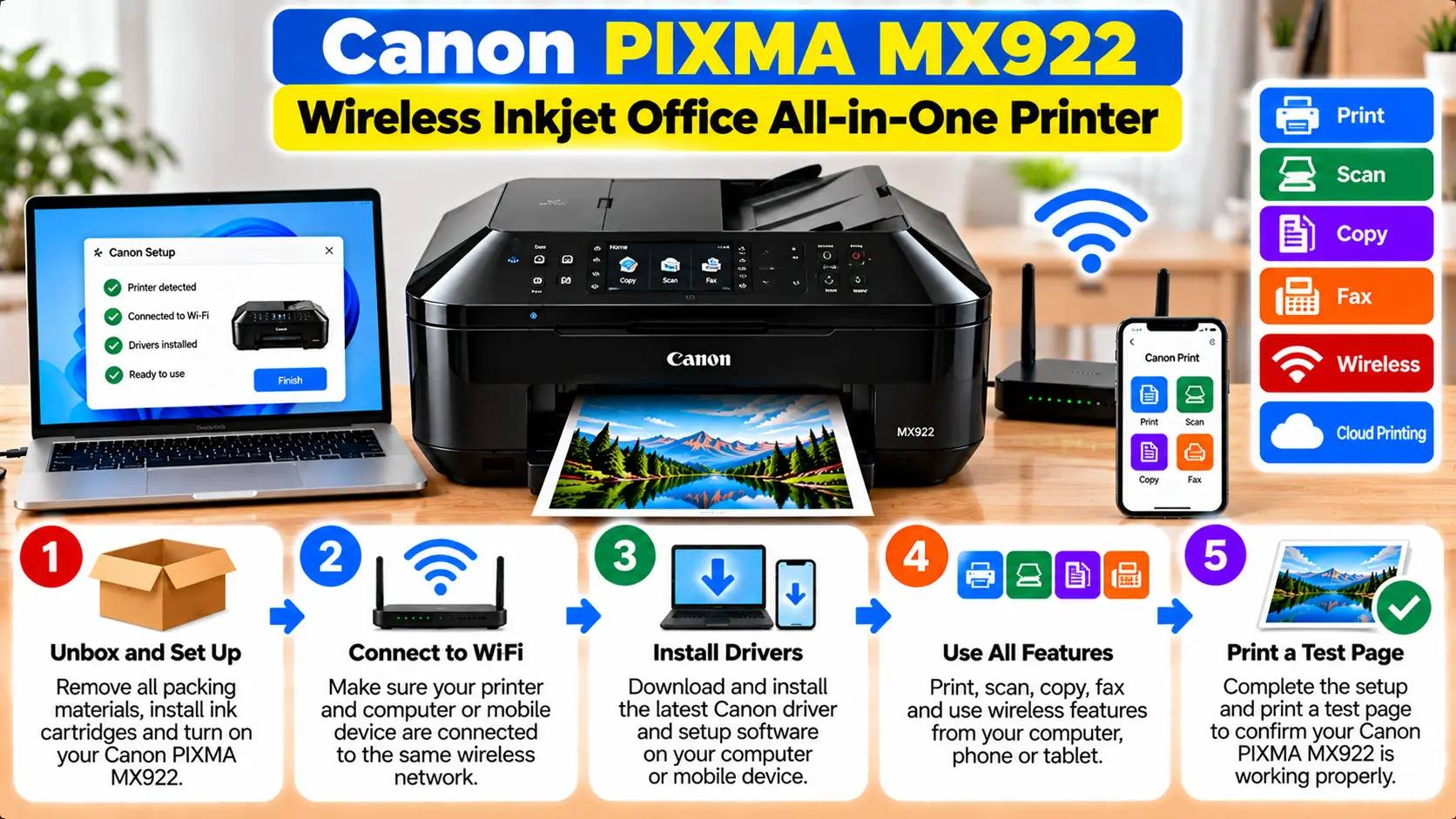
How Do I Set Up a Canon PIXMA MX922?
Prepare the printer, install the ink and paper, choose WiFi, Ethernet, or USB as the connection method, and complete the appropriate printer software setup on your computer. For wireless setup, the MX920-series interface provides Standard Setup and WPS options. After setup, confirm the connection and run a test print.
Canon PIXMA MX922 Features and Connection Options
The PIXMA MX922 combines several office and home printing functions in one device. Canon documents print, copy, scan, and fax functionality for this model.
Important capabilities include:
- Printing
- Flatbed scanning
- Automatic document feeder scanning
- Copying
- Faxing
- Automatic duplex printing
- Wireless LAN connectivity
- Ethernet connectivity
- Hi-Speed USB connectivity
- Network scanning
- AirPrint support
The availability of several connection methods means you should decide how the printer will be used before beginning setup.
Step 1: Prepare the Canon PIXMA MX922
Complete the physical setup before configuring the computer or network.
- Place the printer on a stable surface.
- Connect the printer to power.
- Turn on the printer.
- Install the appropriate ink tanks.
- Load suitable paper.
- Allow the printer to complete its initial startup process.
- Check the display for any error or warning.
Resolve any printer-side error before continuing with network or computer setup.
Step 2: Choose an MX922 Connection Method
Canon lists wireless LAN, Ethernet, and Hi-Speed USB among the MX922's standard interfaces.
| Connection | Typical Use |
|---|---|
| WiFi | Connect the printer to a wireless network for access from compatible network devices. |
| Ethernet | Connect the printer to a wired local network. |
| USB | Direct connection between the printer and a computer. |
Step 3: Connect Canon PIXMA MX922 to WiFi
The MX920-series LAN settings include wireless LAN setup options directly from the printer.
Before starting, make sure:
- The wireless router is operating normally.
- You know the correct wireless network name when manual selection is required.
- You have the correct network security information when required.
- The printer is within a practical range of the wireless access point.
On the printer, access the wireless LAN setup options from its menu and choose the setup method appropriate for your network.
Canon's MX920-series documentation provides Standard Setup for manually configuring the wireless LAN from the printer's operation panel.
Use Standard Wireless Setup
Standard Setup is useful when you want to select the wireless network through the printer and enter the required network information.
- Turn on the MX922.
- Open the printer's WLAN setup menu.
- Choose the standard wireless setup method.
- Select the appropriate wireless access point when it appears.
- Enter the required network security information.
- Follow the instructions shown on the printer's display.
- Wait for the wireless configuration to complete.
After setup, the printer's LAN settings can be reviewed to confirm the connection and network information.
Connect Canon MX922 Using WPS
Canon's MX920-series documentation also provides WPS configuration when the wireless access point supports Wi-Fi Protected Setup.
The documented WPS choices include:
- Push Button method
- PIN Code method
Select the method supported by your access point and follow the instructions shown on the printer.
Step 4: Verify the MX922 Wireless Connection
The MX920-series LAN menu allows you to review the wireless network settings.
The WLAN information can include details such as:
- Connection status
- SSID
- Wireless security information
- IPv4 address
- Subnet mask
- Default gateway
- MAC address
- Printer name
Canon's documentation also indicates that the LAN settings information can be printed from the printer's LAN settings menu.
Step 5: Set Up the MX922 on a Computer
Once the printer is connected using the desired method, complete the computer-side setup using software appropriate for the printer and operating system.
During setup:
- Confirm the exact printer model.
- Select the appropriate operating system.
- Choose the connection type that matches your printer configuration.
- Allow the setup process to search for the printer.
- Complete the remaining installation prompts.
For general driver information, see: Download Canon Printer Drivers .
Using the Canon MX922 with AirPrint
Canon lists AirPrint among the MX922's supported printer features.
For AirPrint, the Apple device and the PIXMA wireless printer should be connected to the same wireless network.
When using a compatible app, choose its printing option, select the MX922 when available, review the print settings, and send the print job.
How to Scan with the Canon PIXMA MX922
The MX922 provides both flatbed and automatic document feeder scanning capabilities.
Canon also lists network scanning among the scanner features.
For basic scanning:
- Confirm the printer is connected to the computer or network.
- Install the appropriate scanning components.
- Place the document on the scanner glass or in the automatic document feeder as appropriate.
- Open the compatible scanning software.
- Select the MX922.
- Choose the desired scan settings.
- Start the scan.
Copying with the Canon MX922
The MX922 can perform copying directly from the printer without requiring every copy job to be started from a computer.
Place the original document correctly, choose the required copy settings from the printer controls, and start the copy operation.
Canon documents features including duplex copying, fit-to-page options, multiple copies, and automatic document feeder functionality.
Canon PIXMA MX922 Fax Setup
The MX922 includes fax functionality. Fax setup is separate from simply connecting the printer to WiFi.
The appropriate telephone-line configuration and fax settings need to be completed for fax use.
Canon PIXMA MX922 Troubleshooting
MX922 Cannot Be Found on WiFi
First make sure the printer is turned on and that wireless LAN has not been disabled in its LAN settings.
Check the WLAN setting list and confirm that the connection is active. Also verify that the printer and computer are using the intended network.
Printer and Computer Are on Different Networks
Compare the printer's SSID with the network used by the computer. If they do not match, reconnect the printer to the intended network.
Weak Wireless Connection
Temporarily move the printer closer to the access point while troubleshooting. Physical obstacles and radio interference can affect wireless communication.
MX922 Is Connected but Will Not Print
Check the printer status, print queue, selected printer, computer network connection, and installed driver. Confirm that the printer itself is not displaying an error code.
MX922 Will Not Scan Over the Network
Confirm that network communication is working and that the appropriate scanner software is installed. Make sure the correct MX922 scanner is selected in the scanning application.
MX922 Shows Support Code 6000
Support code 6000 is a separate printer error and should not be treated as a WiFi configuration problem.
See: Canon MX922 Support Code 6000 Troubleshooting .
MX922 Shows B200
B200 is also an error-specific condition rather than a normal wireless setup issue.
See: Canon PIXMA MX922 B200 Error .
MX922 Troubleshooting Table
| Problem | What to Check |
|---|---|
| Printer not found on WiFi | Printer power, wireless LAN status, SSID, router, distance, and network configuration. |
| Wrong wireless network | Compare the printer WLAN SSID with the network used by the computer. |
| Cannot install printer | Correct model, operating system, driver/software, and selected connection type. |
| Printer connected but offline | Printer status, network connection, print queue, selected printer, and driver. |
| Network scan not working | Network connection, scanning software, scanner selection, and printer status. |
| Support code appears | Troubleshoot the specific support code rather than repeatedly changing WiFi settings. |
Common MX922 Setup Mistakes to Avoid
- Connecting the printer to a different network from the computer.
- Repeatedly changing WiFi settings when the printer is displaying a separate support code.
- Installing software for the wrong PIXMA model.
- Confusing wireless setup with fax-line setup.
- Creating duplicate USB and network printer entries without checking which one is active.
- Factory-resetting the printer as the first response to a network problem.
- Using unknown third-party driver or driver-updater websites.
Related Canon PIXMA MX922 Guides
Frequently Asked Questions
Does the Canon PIXMA MX922 support WiFi?
Yes. Canon lists Wireless LAN IEEE 802.11b/g/n among the MX922's standard interfaces. The model also supports Ethernet and Hi-Speed USB connections.
Can I connect the Canon MX922 using WPS?
Yes, when the access point supports an appropriate WPS method. Canon's MX920-series documentation includes both Push Button and PIN Code WPS setup options.
How can I check whether my MX922 is connected to WiFi?
Open the printer's LAN settings and review the WLAN setting information. The connection status and SSID can help confirm whether the printer is connected to the intended wireless network.
Does the Canon MX922 support AirPrint?
Yes. Canon lists AirPrint as an MX922 printer feature. For wireless AirPrint use, the Apple device and printer should be connected to the same wireless network.
Can the Canon MX922 scan over a network?
Yes. Canon lists Network Scan among the MX922's scanner features. The network connection and appropriate scanning software must be configured correctly.
Should I reset the MX922 if WiFi stops working?
A factory reset should not be the first troubleshooting step. Check the printer's wireless status, SSID, router connection, distance, computer network, and software configuration first.
Final Canon MX922 Setup Checklist
- Printer is powered on and prepared.
- Correct connection method has been selected.
- WiFi users have confirmed the correct SSID.
- Printer shows an active network connection.
- Appropriate printer software is installed.
- Computer can detect the printer.
- Test page prints successfully.
- Scanning works if required.
- Fax configuration is completed separately if fax functionality is required.