Canon PIXMA MG2522 Wireless Setup: Connection Options Explained
If you are searching for Canon PIXMA MG2522 wireless setup instructions, there is an important hardware limitation to understand first. The PIXMA MG2522 uses a Hi-Speed USB interface for its standard computer connection. It does not provide the built-in WiFi setup process found on many wireless PIXMA models. This guide explains the correct connection method and what your options are if you need network access.
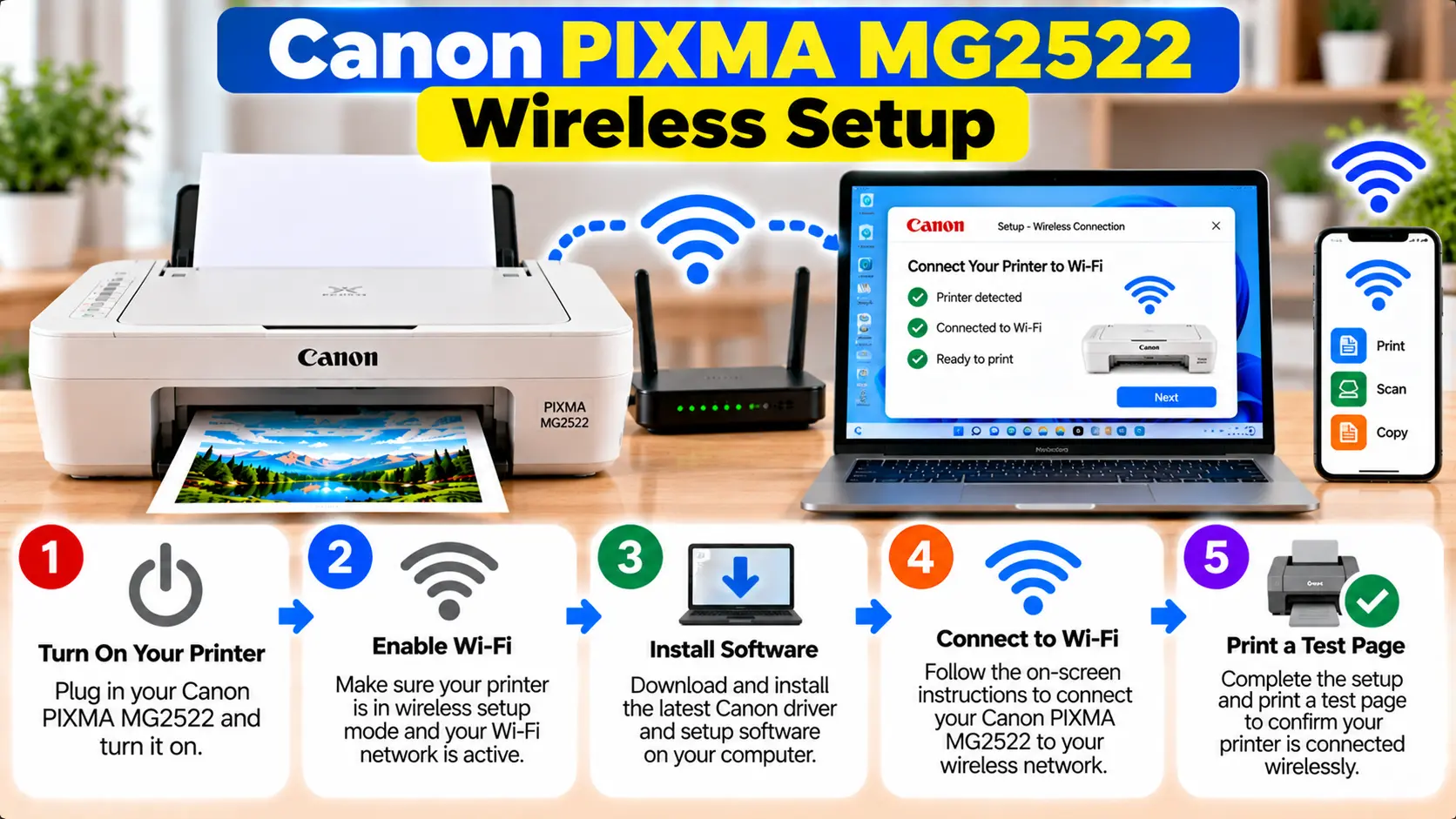
Does the Canon PIXMA MG2522 Support WiFi?
The Canon PIXMA MG2522 does not provide a built-in WiFi connection for direct wireless setup. Canon lists Hi-Speed USB as the model's standard interface. For normal computer setup, connect the MG2522 to a compatible computer using USB and install the appropriate printer software.
Does Canon PIXMA MG2522 Have Wireless Connectivity?
The PIXMA MG2522 should not be treated as a WiFi-enabled printer. Its documented standard interface is Hi-Speed USB.
This means you should not expect the MG2522 itself to provide the normal wireless setup features found on a WiFi-capable printer, such as:
- Selecting a home WiFi network directly for the printer
- Entering a router WiFi password into the printer
- WPS push-button printer setup
- Wireless Direct from the printer
- A normal printer WiFi IP address
Why Do People Search for MG2522 Wireless Setup?
Canon sells many PIXMA printers, and a large number of them support WiFi. That can make it easy to assume that every PIXMA model has the same wireless capabilities.
Search results and generic printer instructions can also mix procedures for different model families. A guide may mention a Wireless Connect button, WiFi menu, WPS option, or network password even though those instructions were created for a different printer.
Always check the exact model before following a connection procedure.
What Connection Does the Canon MG2522 Use?
The normal direct connection between a PIXMA MG2522 and a computer is USB.
For a standard setup you need:
- Canon PIXMA MG2522
- Compatible computer
- Suitable USB printer cable
- Appropriate printer driver or setup software
- Working computer USB port
A USB connection allows the computer to communicate directly with the printer for printing and scanning when the required software is installed.
How to Set Up Canon PIXMA MG2522 by USB
If you originally expected a wireless setup, use the following supported direct-connection process instead.
- Place the MG2522 near the computer.
- Connect the printer to power.
- Turn on the printer.
- Make sure the ink cartridges and paper are installed correctly.
- Identify the operating system running on the computer.
- Obtain the appropriate MG2522 printer software or driver.
- Start the setup process.
- Follow the installer's instructions for the USB connection.
- Connect the printer securely to the computer when required.
- Allow the installation and printer detection process to complete.
If you do not have the original setup disc, see: How to Set Up Canon PIXMA MG2522 Without CD .
Check the Canon MG2522 in Windows
After the USB setup is complete, confirm that Windows recognizes the printer.
On Windows 11, open:
Settings → Bluetooth & devices → Printers & scanners
Look for the Canon printer in the printer list. If it is present, select it and review the available printer options.
If the printer is not detected, check the USB cable and port before assuming that the printer needs a wireless connection.
For a detailed PC connection guide, see: Connect Canon PIXMA MG2522 to PC .
Can the MG2522 Be Shared Over a Network?
There is an important difference between a printer having built-in WiFi and a USB printer being shared by a computer.
Canon's MG2500-series documentation describes a printer-sharing configuration where the printer is connected directly to one computer through USB and that computer acts as the print server.
In that type of configuration:
- The MG2522 remains physically connected by USB to the host computer.
- The host computer is configured to share the printer.
- Other compatible computers on the network may access the shared printer through the host system.
Can I Connect the MG2522 Directly to My Phone Over WiFi?
The MG2522 does not provide the built-in wireless interface needed for the usual direct WiFi printer setup used with smartphones.
Therefore, do not use instructions for WiFi, Wireless Direct, or WPS from another PIXMA model and expect them to activate wireless hardware on the MG2522.
If direct phone-to-printer wireless printing is an important requirement, you need a printer model that explicitly lists the appropriate wireless or mobile-printing capabilities.
Can I Connect the MG2522 Directly to My WiFi Router?
A normal MG2522 setup does not involve selecting your router's WiFi network or entering its WiFi password into the printer.
If a guide tells you to press a WiFi or WPS button on the MG2522, verify the printer model. The instructions may belong to another PIXMA series.
Canon MG2522 Connection Troubleshooting
Computer Does Not Detect the MG2522
Confirm that the printer has power and that the USB cable is firmly connected at both ends. Try a different suitable computer USB port if necessary.
Driver Will Not Install
Check that the software is intended for the PIXMA MG2522 and your operating system. A previous failed installation can also interfere with a new setup.
See: Canon PIXMA MG2522 Driver Not Installing .
Printer Works Slowly Through USB
Check the USB port, cable, and computer connection. A USB connection that falls back to a slower communication mode can affect printing or scanning speed.
I Cannot Find a WiFi Button
Do not assume that a button is missing. The instructions you are reading may be intended for a wireless-capable Canon printer rather than the MG2522.
I Cannot Find the Printer's IP Address
A directly USB-connected MG2522 is not configured on your WiFi network in the same way as a WiFi-enabled network printer, so do not use an IP address as the starting point for normal MG2522 USB setup.
MG2522 Wireless vs USB Setup
| Feature | Canon PIXMA MG2522 |
|---|---|
| Standard computer interface | Hi-Speed USB |
| Built-in WiFi setup | Not provided as the model's standard connection method |
| WPS printer setup | Not part of the normal MG2522 connection process |
| Direct computer connection | USB |
| Computer-based printer sharing | Possible in supported network environments with a USB-connected host computer |
| Driver/software | Use software appropriate for the exact model and operating system |
Common MG2522 Connection Mistakes
- Following WiFi instructions for another PIXMA printer
- Searching for a WPS button that is not part of the MG2522 setup process
- Trying to enter a WiFi password into the printer
- Assuming every PIXMA printer supports wireless connectivity
- Installing software for a different printer model
- Ignoring a faulty or loose USB connection
- Treating computer-based printer sharing as built-in printer WiFi
Related Canon PIXMA MG2522 Guides
Frequently Asked Questions
Is the Canon PIXMA MG2522 a wireless printer?
The MG2522 does not provide built-in WiFi for the normal wireless printer setup process. Canon lists Hi-Speed USB as its standard interface.
How do I connect my Canon MG2522 to my computer?
Use a suitable USB printer cable and install the appropriate MG2522 software or driver for your computer's operating system.
Where is the WiFi button on the Canon MG2522?
The MG2522 is not set up as a built-in WiFi printer. If instructions tell you to use a WiFi or Wireless Connect button, check whether those instructions belong to another Canon model.
Can I connect the MG2522 to my router using WPS?
WPS is not part of the normal MG2522 connection process. The printer's documented standard interface is USB.
Can the MG2522 be shared with another computer?
Canon's MG2500-series documentation describes printer sharing where the printer remains connected by USB to a host computer and other computers access the shared printer through that host. This is different from the printer having built-in WiFi.
Why does my MG2522 not have an IP address?
A normal MG2522 setup uses a direct USB connection rather than connecting the printer itself to the WiFi network. Therefore, an IP address is not part of the normal direct USB setup process.
Final MG2522 Connection Checklist
- Confirm the exact printer model is MG2522.
- Do not use another PIXMA model's WiFi steps.
- Use the supported USB connection method.
- Check the USB cable and computer port.
- Install software intended for the MG2522.
- Confirm the printer appears on the computer.
- Print a test document.
- Test scanning if scanner functionality is required.